View videos by Industry/Function
Financial/Banking/Investment- Visually showing procedures that include decisions; Slide Makeover #76
In many procedures or processes, there are decisions to make that impact the outcome or end point. This makeover shows how to take a numbered list and transform it into a visual that easily communicates the decisions and the outcomes.
Click here to watch the video on slideshare (home or corporate viewers)
- Revealing details in levels; Slide Makeover #72
Too often presenters overwhelm audiences with details using a spreadsheet copied on to a slide. This makeover shows how you can reveal details in levels so the audience can follow your message easier.
Click here to watch the video on Brainshark (corporate viewers)
Click here to watch the video on YouTube (home viewers)
- Distracting background images (uses slide from Gov Cuomo); Slide Makeover #68
Using an image as the background for your slide might seem like a way to increase the visual appeal of your slides, but it can actually distract the audience from your message. This makeover takes a slide used by NY Gov Cuomo and shows how the message could stand out more without an image background.
Click here to watch video on Brainshark (corporate viewers)
Click here to watch the video on YouTube (home viewers)
- Using a common denominator for comparisons; Slide Makeover #65
If you want your audience to understand a comparison of two or more values, you must make it easy for them to see the difference without having to do calculations in their head. This makeover shows how to use a common denominator to make the comparison easy to understand.
Click here to watch the video on Brainshark (corporate viewers)
Click here to watch the video on YouTube (home viewers)
- Breaking the addiction to bulletizing a single point; Slide Makeover #64
In an effort to fill a slide, too many presenters break one point into multiple bullet points. This makeover shares lessons for breaking this addiction and creating visual slides that help you communicate more effectively.
Click here to watch the video on Brainshark (corporate viewers)
Click here to watch the video on YouTube (home viewers)
- Making multiple messages easier to understand; Slide Makeover #61
When you put multiple messages on one slide, it confuses the audience. This makeover shows how you can deliver an effective message by having one message per slide.
Click here to watch video on Brainshark (corporate viewers)
Click here to watch video on YouTube (home viewers)
- Making Excel spreadsheets meaningful – Part 2; Slide Makeover #59
This makeover continues the discussion of ways to make financial figures from Excel more meaningful. It shows how to create a graph that clearly communicates the message and how to use a hyperlink to the spreadsheet in order to answer detailed questions that may come up.
Click here to watch video on Brainshark (corporate viewers)
Click here to watch video on YouTube (home viewers)
- Making Excel spreadsheets meaningful – Part 1; Slide Makeover #58
When financial figures need to be included in a presentation, too often an Excel spreadsheet is copied on to a slide. It overwhelms the audience and the message is lost. Use the ideas in this makeover to focus the audience on the few key numbers they need to know in order to understand your message.
Click here to watch video on Brainshark (corporate viewers)
Click here to watch video on YouTube (home viewers)
- Revealing infographics one portion at a time; Slide Makeover #57
Infographics are a popular way to illustrate information, especially for print publications. When used in presentations, they can sometimes be overwhelming. Use the ideas in this makeover to reveal the portions of the infographic one at a time to keep the focus of your audience.
Click here to watch video on Brainshark (corporate viewers)
Click here to watch video on YouTube (home viewers)
- Using a table to organize information; Slide Makeover #55
If you want the audience to understand results or numeric information, don’t use text on your slides that reads like your speaker notes. Use the ideas in this makeover to create a table that makes it easy for the audience to understand what the numbers mean to them.
Click here to watch the video on Brainshark (corporate viewers)
Click here to watch video on YouTube (home viewers)
- Layering the discussion of detailed data; Slide Makeover #52
Often we need to present detailed data that has come from analysis. Instead of overwhelming your audience by putting all the data on a slide, use the ideas in this makeover to layer the discussion of the data so it makes sense and the audience can understand and act on it.
Click here to watch video on Brainshark (corporate viewers)
Click here to watch video on YouTube (home viewers)
- Showing differences in magnitude; Slide Makeover #49
To many presenters, numbers are the natural way to show differences in magnitude; and the more numbers the better. Our audiences get overwhelmed by all the numbers and miss the point unless we use the lessons in this makeover to turn the numbers into a visual that shows the difference clearly.
Click here to watch video on Brainshark (corporate viewers)
Click here to watch video on YouTube (home viewers)
- Comparing items that are proportional; Slide Makeover #48
Don’t randomly draw shapes on your slide if you are comparing them because audiences interpret the proportions of the items they see on a slide. Use the ideas in this makeover to give the audience an accurate interpretation of items that are proportional.
Click here to watch video on Brainshark (corporate viewers)
Click here to watch video on YouTube (home viewers)
- Showing choices instead of listing them; Slide Makeover #47
If you are explaining what choices an audience has in a situation they are likely to encounter, don’t just list the choices as bullet points. This makeover shows how a decision tree diagram can make the thought process clear and increase the probability that the audience will apply the knowledge when faced with the situation.
Click here to watch the video on Brainshark (corporate viewers)
Click here to watch video on YouTube (home viewers)
- Transforming speaker notes into a visual; Slide Makeover #45
Far too many slides are, in reality, notes for the speaker to remember what they are supposed to say. The slides end up being read to the audience. This makeover takes a wordy slide and the accompanying speaking notes and shows how the clues hidden in the text can lead to a more effective visual.
Click here to watch video on Brainshark (corporate viewers)
Click here to watch video on YouTube (home viewers)
- Making definitions interesting; Slide Makeover #44
In too many training and teaching presentations, the definitions of key terms are read verbatim from text on the slides. This makeover shows that defintions can be interesting if you connect with the audience and leave them with a definition they will remember.
Click to watch video on Brainshark (corporate viewers)
Click here to watch video on YouTube (home viewers)
- Comparing information at two points in time; Slide Makeover #42
Too often presenters lose the audience when presenting a comparison at two points in time. This makeover shows how to visually present the comparison in a way that is easy for the audience to understand.
Click here to watch video on Brainshark (corporate viewers)
Click here to watch video on YouTube (home viewers)
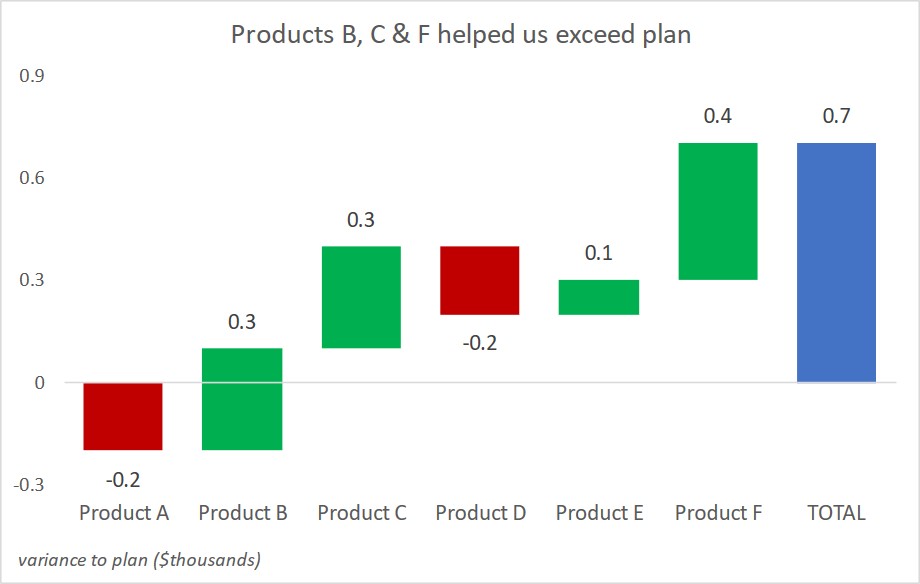
- Explaining components of a difference; Slide Makeover #41
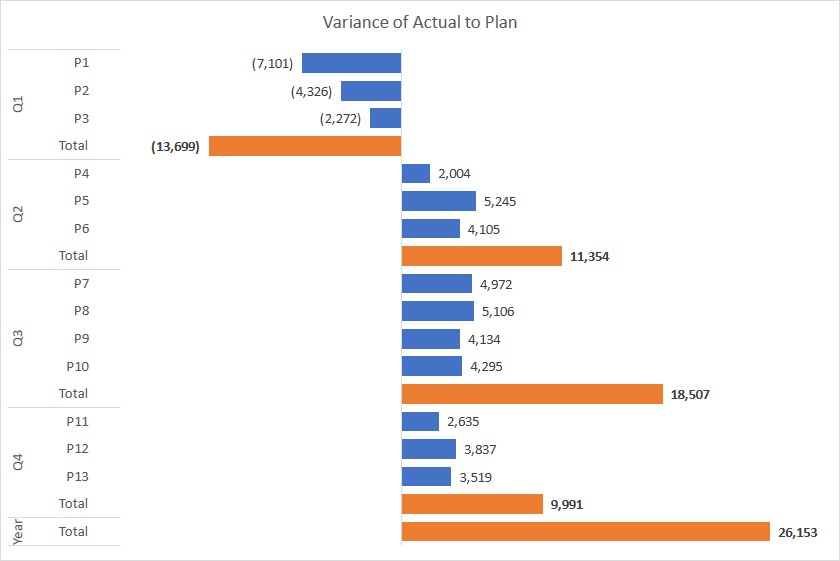
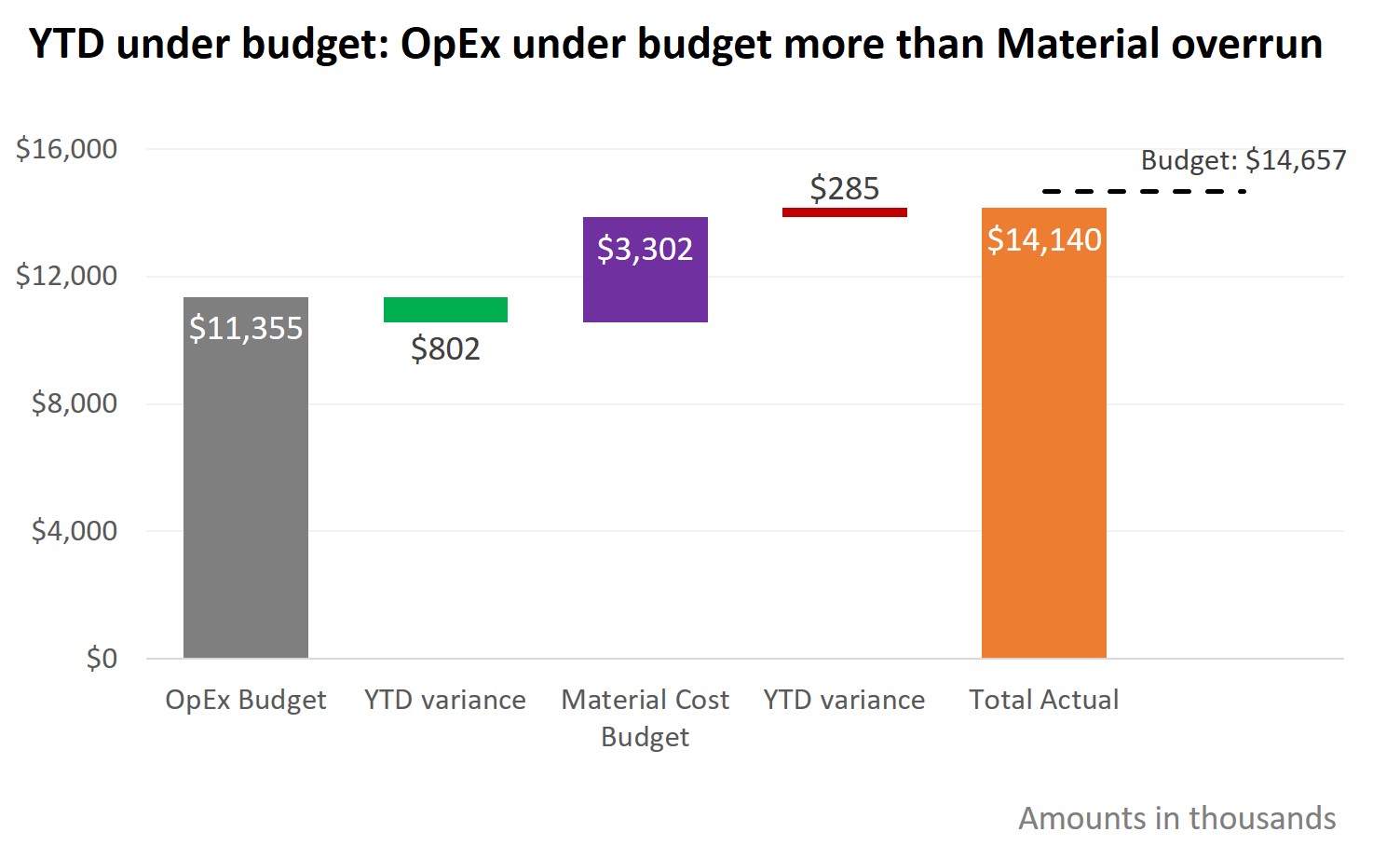
When comparing financial figures between two periods, one of the common messages we need to communicate is what makes up the difference between the two figures. Instead of just pasting an Excel sheet on your slide, use the ideas in this makeover to break down the difference visually and make each component clear to your audience.
Click here to watch video on Brainshark (corporate viewers)
Click here to watch video on YouTube (home viewers)
- Showing a comparison on two dimensions; Slide Makeover #40
Financial or operational analysis often includes reporting on what the outcome would be under different scenarios. Instead of listing each individual scenario in a table from Excel, use the ideas in this makeover to show the results visually.
Click here to watch video on Brainshark (corporate viewers)
Click here to watch video on YouTube (home viewers)
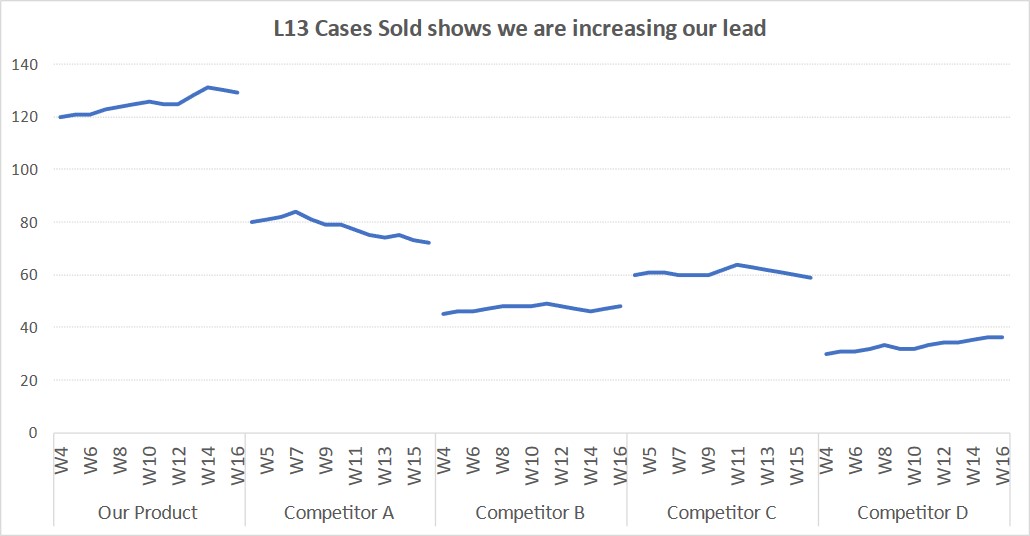
- Reducing the clutter of graph labels to make it easy to understand; Slide Makeover #36
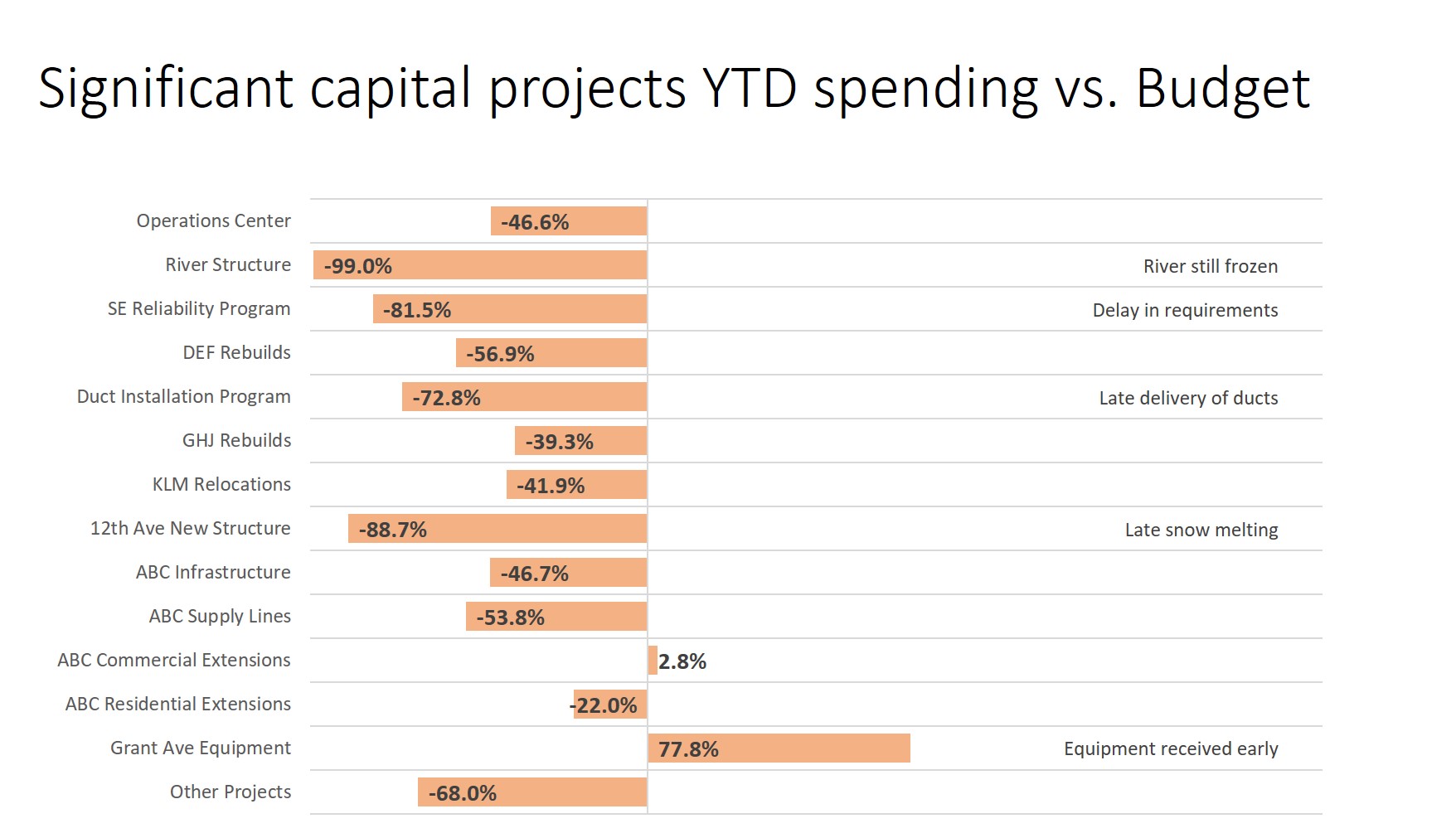
Presenters struggle with graphs that are cluttered with too much information that takes away from the data being shown. This makeover shows how to clean up a graph to make it clear for the audience.
Click here to watch video on Brainshark (corporate viewers)
Click here to watch video on YouTube (home viewers)
- Explaining accumulation of changes; Slide Makeover #35
When different factors add up to an overall financial change, many presenters use a stacked column graph with a legend. This makeover shows how to create a better visual that makes each change clear and easy to understand.
Click here to watch the video on Brainshark (corporate viewers)
Click here to watch video on YouTube (home viewers)
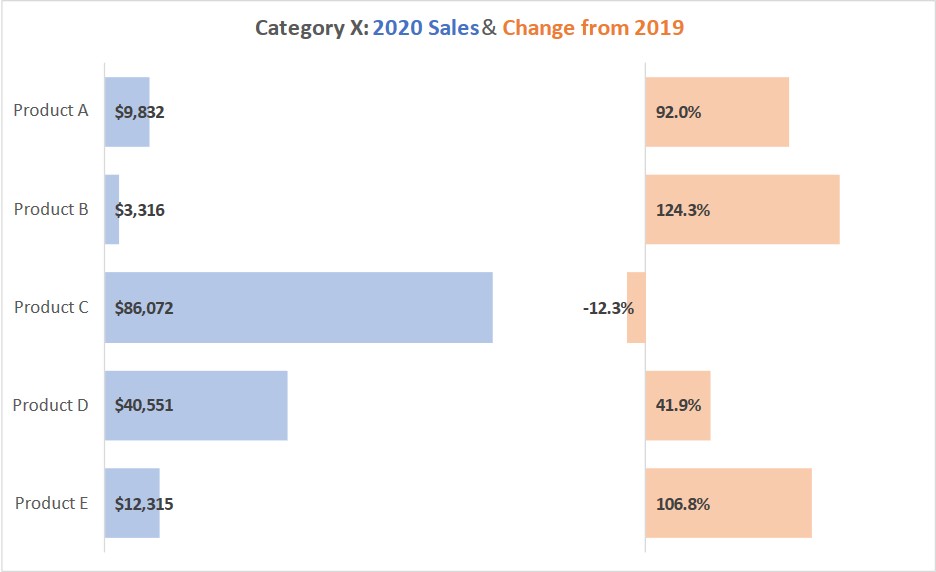
- Putting multiple visuals on a slide; Slide Makeover #29
Sometimes you are restricted in the number of slides you can use and may need to put more than one idea on a slide. This makeover shows how to put two related ideas on a slide using persuasive visuals.
Click here to watch video on Brainshark (corporate viewers)
Click here to watch video on YouTube (home viewers)
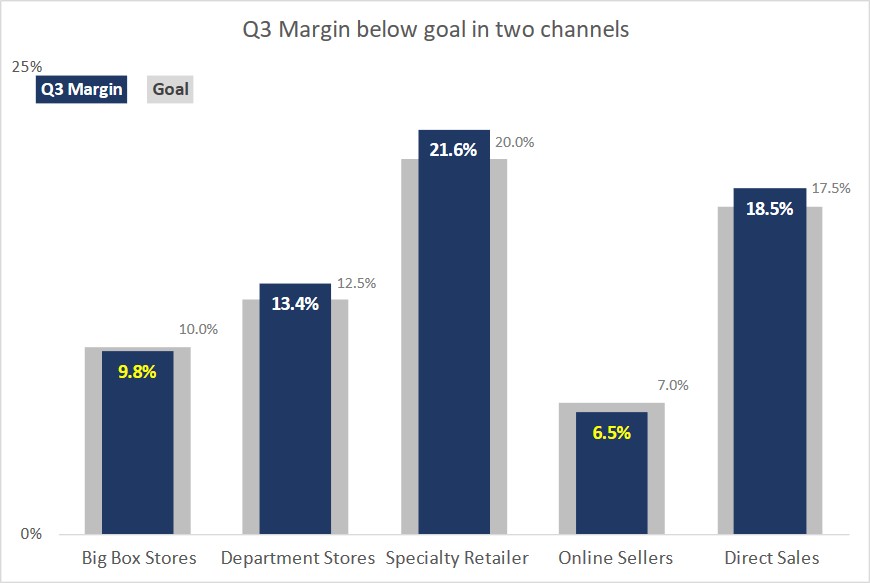
- Presenting performance against an acceptable range; Slide Makeover #27
When showing financial and operational performance against targets, it is common to use a table of figures. This makeover shows how to transform one of the measurements into a graph that effectively communicates to the audience that planned performance is within an acceptable range.
- Showing changes in calculations visually; Slide Makeover #14
When you are presenting a calculation and how changes will affect it, make sure you do it so that the information is clearly understood. This makeover shows a slide with a confusing calculation transformed into a clear visual that people will be able to understand and act on after the presentation.
Click here to watch video on Brainshark (corporate viewers)
Click here to watch video on YouTube (home viewers)
Sales
- Using tables in PowerPoint; Slide Makeover #71
A table is a good way to organize information into rows and columns. Unfortunately, the default appearance and behaviour of tables in PowerPoint does not make them as effective as they could be. This makeover shows a default table improved so the message can be communicated more effectively.
Click to watch the video on Brainshark (corporate viewers)
Click to watch the video on YouTube (home viewers)
- Demonstrating calculations; Slide Makeover #69
It is a good idea to use calculations to back up or prove the points you are making. This makeover shows how a slide overloaded with text explanations of the calculations can become more effective.
Click to watch the video on on Brainshark (corporate viewers)
Click to watch the video on YouTube (home viewers)
- When the appeal of a full-screen photo is the wrong approach; Slide Makeover #67
We are being told to use more visuals on our slides and it is a better approach than walls of text. But if you are tempted to use a full-screen photo just because it looks cool, consider the advice from this makeover that shows how a simple visual can communicate more effectively in some cases.
Click here to watch the video on Brainshark (corporate viewers)
Click here to watch the video on YouTube (home viewers)
- Revealing infographics one portion at a time; Slide Makeover #57
Infographics are a popular way to illustrate information, especially for print publications. When used in presentations, they can sometimes be overwhelming. Use the ideas in this makeover to reveal the portions of the infographic one at a time to keep the focus of your audience.
Click here to watch video on Brainshark (corporate viewers)
Click here to watch video on YouTube (home viewers)
- Emphasis in a diagram image by shading out a portion; Slide Makeover #56
When a diagram comes to us as an image, it is more difficult to focus the audience’s attention because they can see the entire image. Use the techniques in this makeover to emphasize a portion by shading out the areas you don’t want the audience to focus on.
Click here to watch video on Brainshark (corporate viewers)
Click here to watch video on YouTube (home viewers)
- Using a timeline instead of a list of dates; Slide Makeover #54
When we want to talk about upcoming product launches or future events, the easy approach is to just list dates on a bullet point slide. This makeover shows a timeline visual that communicates the message more clearly and with greater impact.
Click here to watch video on Brainshark (corporate viewers)
Click here to watch video on YouTube (home viewers)
- Combining multiple comparisons; Slide Makeover #51
When we want to compare one items against two or more other items, we tend to put statistics on a slide to show each individual comparison. The ideas in this makeover show how to combine all the comparisons visually to make the point with greater impact.
Click here to watch the video on Brainshark (corporate viewers)
Click here to watch video on YouTube (home viewers)
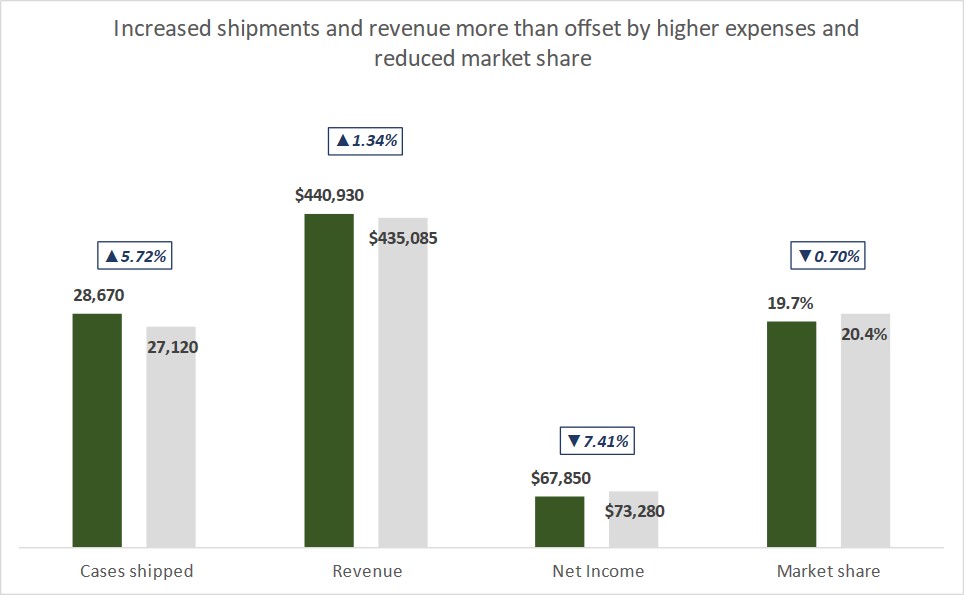
- Showing differences in magnitude; Slide Makeover #49
To many presenters, numbers are the natural way to show differences in magnitude; and the more numbers the better. Our audiences get overwhelmed by all the numbers and miss the point unless we use the lessons in this makeover to turn the numbers into a visual that shows the difference clearly.
Click here to watch video on Brainshark (corporate viewers)
Click here to watch video on YouTube (home viewers)
- Transforming speaker notes into a visual; Slide Makeover #45
Far too many slides are, in reality, notes for the speaker to remember what they are supposed to say. The slides end up being read to the audience. This makeover takes a wordy slide and the accompanying speaking notes and shows how the clues hidden in the text can lead to a more effective visual.
Click here to watch video on Brainshark (corporate viewers)
Click here to watch video on YouTube (home viewers)
- Making a list connect with an audience; Slide Makeover #43
If you present a long text list on a slide, it overwhelms the audience and they tune out. Use the ideas in this makeover to find a visual that connects and illustrates the point you want to make.
Click here to watch video on Brainshark (corporate viewers)
Click here to watch video on YouTube (home viewers)
- Presenting people-based statistics visually; Slide Makeover #28
Often presentations need to include statistics. When those statistics are about people, consider showing pictures of people instead of just quoting the text and numbers. It helps the audience connect with what the statistic means to them.
Click here to watch video on Brainshark (corporate viewers)
Click here to watch video on YouTube (home viewers)
- Showing time based information with a calendar visual; Slide Makeover #16
When you are talking about date based events or information, don’t use a simple list of the dates with no visual. This makeover shows a slide with a list of dates transformed into a clear visual that people will be able to understand and act on after the presentation.
Click here to watch video on Brainshark (corporate viewers)
Click here to watch video on YouTube (home viewers)
- Showing changes between time periods; Slide Makeover #15
When you are showing changes over a time period, avoid confusing the audience with an overloaded visual. This makeover shows a slide with a confusing diagram transformed into a series of clear visuals that people will be able to understand and act on after the presentation.
Click here to watch video on Brainshark (corporate viewers)
Click here to watch video on YouTube (home viewers)
- Transforming a confusing pyramid visual; Slide Makeover #7
Just adding a visual to your slides is not enough – it must have context so the audience can understand it. This makeover shows a visual and how it can be recreated to have a much better impact on the audience.
Click here to watch video on Brainshark (corporate viewers)
Click here to watch video on YouTube (home viewers)
- Transforming the About Our Company slide; Slide Makeover #5
A commonly used slide, the “About Us” slide, is transformed into a series of slides that show the the audience why they should care about all these facts and makes the impact you want.
Click here to watch video on Brainshark (corporate viewers)
Click here to watch video on YouTube (home viewers)
Technical/Operations
- Visually showing procedures that include decisions; Slide Makeover #76
In many procedures or processes, there are decisions to make that impact the outcome or end point. This makeover shows how to take a numbered list and transform it into a visual that easily communicates the decisions and the outcomes.
Click here to watch the video on slideshare (home or corporate viewers)
- Transforming data dump slides; Slide Makeover #75
It is too easy to jump dump a ton of data on a slide and hope the audience figures out what it means. This makeover shows what can be done with a huge table of data to make it meaningful to the audience.
Click here to watch the video on Brainshark (corporate viewers)
Click here to watch the video on slideshare (home or corporate viewers)
- Using an analogy to make a large number make sense; Slide Makeover #74
Presenters often struggle with how to make large numbers easy for the audience to understand. This makeover shows how using a four step process can create a visual that makes it easy for the audience to grasp the importance and magnitude of a large number.
Click here to watch the video on Brainshark (corporate viewers)
Click here to watch the video on YouTube (home viewers)
- Making proportions stand out; Slide Makeover #73
A pie chart is better than a data table to show proportions in data. This makeover takes it the next step to show how a proportional diagram can be more effective than a pie chart in some situations.
Click here to watch the video on Brainshark (corporate viewers)
Click here to watch the video on YouTube (home viewers)
- Demonstrating calculations; Slide Makeover #69
It is a good idea to use calculations to back up or prove the points you are making. This makeover shows how a slide overloaded with text explanations of the calculations can become more effective.
Click to watch the video on on Brainshark (corporate viewers)
Click to watch the video on YouTube (home viewers)
- The downside of SmartArt; Slide Makeover #66
SmartArt is supposed to make creating visuals easy, but too often presenters use it without considering whether the pre-made diagram is effectively communicating their message. This makeover shows an example of how a SmartArt diagram can be replaced with a more effective simple visual.
Click here to watch video on Brainshark (corporate viewers)
Click here to watch video on YouTube (home viewers)
- Breaking the addiction to bulletizing a single point; Slide Makeover #64
In an effort to fill a slide, too many presenters break one point into multiple bullet points. This makeover shares lessons for breaking this addiction and creating visual slides that help you communicate more effectively.
Click here to watch the video on Brainshark (corporate viewers)
Click here to watch the video on YouTube (home viewers)
- Presenting organizational charts; Slide Makeover #63
It is common in corporate settings to present an organization chart to show the different roles in a department. Instead of overwhelming your audience with an unreadable chart, use the lessons in this makeover to create a clear set of slides.
Click here to watch the video on Brainshark (corporate viewers)
Click here to watch the video on YouTube (home viewers)
- Making multiple messages easier to understand; Slide Makeover #61
When you put multiple messages on one slide, it confuses the audience. This makeover shows how you can deliver an effective message by having one message per slide.
Click here to watch video on Brainshark (corporate viewers)
Click here to watch video on YouTube (home viewers)
- Using animation to help audiences understand; Slide Makeover #60
Animation is a good way to build each point as you discuss it. Instead of animation that confuses the audience, this makeover shows how to make sure you use animation properly to mak eyour message clearer.
Click here to watch video on Brainshark (corporate viewers)
Click here to watch video on YouTube (home viewers)
- Emphasis in a diagram image by shading out a portion; Slide Makeover #56
When a diagram comes to us as an image, it is more difficult to focus the audience’s attention because they can see the entire image. Use the techniques in this makeover to emphasize a portion by shading out the areas you don’t want the audience to focus on.
Click here to watch video on Brainshark (corporate viewers)
Click here to watch video on YouTube (home viewers)
- Using a table to organize information; Slide Makeover #55
If you want the audience to understand results or numeric information, don’t use text on your slides that reads like your speaker notes. Use the ideas in this makeover to create a table that makes it easy for the audience to understand what the numbers mean to them.
Click here to watch the video on Brainshark (corporate viewers)
Click here to watch video on YouTube (home viewers)
- Showing choices instead of listing them; Slide Makeover #47
If you are explaining what choices an audience has in a situation they are likely to encounter, don’t just list the choices as bullet points. This makeover shows how a decision tree diagram can make the thought process clear and increase the probability that the audience will apply the knowledge when faced with the situation.
Click here to watch the video on Brainshark (corporate viewers)
Click here to watch video on YouTube (home viewers)
- Making a list connect with an audience; Slide Makeover #43
If you present a long text list on a slide, it overwhelms the audience and they tune out. Use the ideas in this makeover to find a visual that connects and illustrates the point you want to make.
Click here to watch video on Brainshark (corporate viewers)
Click here to watch video on YouTube (home viewers)
- Showing a comparison on two dimensions; Slide Makeover #40
Financial or operational analysis often includes reporting on what the outcome would be under different scenarios. Instead of listing each individual scenario in a table from Excel, use the ideas in this makeover to show the results visually.
Click here to watch video on Brainshark (corporate viewers)
Click here to watch video on YouTube (home viewers)
- Presenting Test or Measurement Procedures; Slide Makeover #39
Presenting tests or measurements usually includes talking about how often the testing is done and what tests were performed. Don’t use bullet filled slides, use the ideas in this makeover to organize the information visually so it is clear for your audience.
Click here to watch video on Brainshark (corporate viewers)
Click here to watch video on YouTube (home viewers)
- Making graphs from other sources easier to understand; Slide Makeover #38
When we get graphs as graphics from other sources, we think there is nothing we can do with them. This makeover shows how to take a graph image and make it more effective using tools in PowerPoint.
Click here to watch video on Brainshark (corporate viewers)
Click here to watch video on YouTube (home viewers)
- Showing movement of measured values visually instead of a table of numbers; Slide Makeover #32
When you want to show numeric values that have moved between two tests or time periods, don’t use a copied Excel table on your slide. This makeover shows how to use a visual with appropriate movement animation to illustrate the results.
Click here to watch video on Brainshark (corporate viewers)
Click here to watch video on YouTube (home viewers)
- Presenting performance against an acceptable range; Slide Makeover #27
When showing financial and operational performance against targets, it is common to use a table of figures. This makeover shows how to transform one of the measurements into a graph that effectively communicates to the audience that planned performance is within an acceptable range.
- Reformatting a list to add clarity; Slide Makeover #26
A common bullet point list is transformed by focusing on how to give the audience context and help them understand the information. It is not necessary to eliminate all text, but restructuring it often increases the effectiveness.
Click here to watch video on Brainshark (corporate viewers)
Click here to watch video on YouTube (home viewers)
- Presenting a complex diagram; Slide Makeover #23
Seth Godin and PC World describe this slide as one of the worst PowerPoint slides ever. The complex diagram makes it impossible to understand what the message is. This makeover shows a better way to present complex diagrams so the audience understands the ideas.
Click here to watch video on Brainshark (corporate viewers)
Click here to watch video on YouTube (home viewers)
- Telling a visual story when using an analogy; Slide Makeover #21
Analogies are a good way to help the audience understand your point. But if the analogy is unclear, it hinders instead of helps. This makeover shows a more visual way to use an analogy to make the point more effectively.
Click here to watch video on Brainshark (corporate viewers)
Click here to watch video on YouTube (home viewers)
- Showing time based information with a calendar visual; Slide Makeover #16
When you are talking about date based events or information, don’t use a simple list of the dates with no visual. This makeover shows a slide with a list of dates transformed into a clear visual that people will be able to understand and act on after the presentation.
Click here to watch video on Brainshark (corporate viewers)
Click here to watch video on YouTube (home viewers)
- Creating a comparison slide that keeps context; Slide Makeover #10
Whether you are comparing two positions, results at two points in time or two concepts, your audience needs to be able to keep context to understand the differences. This makeover shows two slides that lose the audience transformed into a clear visual that people will be able to remember and act on after the presentation.
Click here to watch video on Brainshark (corporate viewers)
Click here to watch video on YouTube (home viewers)
- Creating a meaningful table from an Excel table; Slide Makeover #8
When presenting numbers that were calculated in Excel, don’t just copy and paste part of your spreadsheet. This makeover shows a table of numbers transformed into a concise summary of the key issues that decision makers need to know.
Click here to watch video on Brainshark (corporate viewers)
Click here to watch video on YouTube (home viewers)
- Survey data made clear; Slide Makeover #2
A slide with tons of data from a survey is transformed into a series of visuals that communicate clearly to decision-makers.
Click here to watch video on YouTube
Government/Non-Profit
- Transforming data dump slides; Slide Makeover #75
It is too easy to jump dump a ton of data on a slide and hope the audience figures out what it means. This makeover shows what can be done with a huge table of data to make it meaningful to the audience.
Click here to watch the video on Brainshark (corporate viewers)
Click here to watch the video on slideshare (home or corporate viewers)
- Using an analogy to make a large number make sense; Slide Makeover #74
Presenters often struggle with how to make large numbers easy for the audience to understand. This makeover shows how using a four step process can create a visual that makes it easy for the audience to grasp the importance and magnitude of a large number.
Click here to watch the video on Brainshark (corporate viewers)
Click here to watch the video on YouTube (home viewers)
- Using proportional diagrams (example from Pres. Obama SOTU); Slide Makeover #70
In the recent State of the Union address, President Obama used some visuals in the enhanced broadcast on the web. One of those visuals was a proportional diagram. This makeover shows how you can use a proportional diagram effectively on a slide.
Click to watch the video on Brainshark (corporate viewers)
Click to watch the video on YouTube (home viewers)
- Distracting background images (uses slide from Gov Cuomo); Slide Makeover #68
Using an image as the background for your slide might seem like a way to increase the visual appeal of your slides, but it can actually distract the audience from your message. This makeover takes a slide used by NY Gov Cuomo and shows how the message could stand out more without an image background.
Click here to watch video on Brainshark (corporate viewers)
Click here to watch the video on YouTube (home viewers)
- Layering the discussion of detailed data; Slide Makeover #52
Often we need to present detailed data that has come from analysis. Instead of overwhelming your audience by putting all the data on a slide, use the ideas in this makeover to layer the discussion of the data so it makes sense and the audience can understand and act on it.
Click here to watch video on Brainshark (corporate viewers)
Click here to watch video on YouTube (home viewers)
- Adding a visual to a quote; Slide Makeover #50
Quotations are commonly used to illustrate a point in a presentation. Instead of just using the text of the quote, use the ideas in this makeover to add a visual that makes the quote come alive for the audience.
Click here to watch video on Brainshark (corporate viewers)
Click here to watch video on YouTube (home viewers)
- Reducing the clutter of graph labels to make it easy to understand; Slide Makeover #36
Presenters struggle with graphs that are cluttered with too much information that takes away from the data being shown. This makeover shows how to clean up a graph to make it clear for the audience.
Click here to watch video on Brainshark (corporate viewers)
Click here to watch video on YouTube (home viewers)
- Explaining relationships between roles; Slide Makeover #34
Instead of writing paragraphs to explain each role in a situation or organization, use the ideas in this makeover to create a visual that the audience can easily follow.
Click here to watch video on Brainshark (corporate viewers)
Click here to watch video on YouTube (home viewers)
- Explaining methods of calculating figures; Slide Makeover #33
If you have to explain the calculations you did or methodology used to create your results, don’t use paragraphs on the slide. Instead, like this makeover shows, illustrate the methods using a simple approach and examples.
Click here to watch video on Brainshark (corporate viewers)
Click here to watch video on YouTube (home viewers)
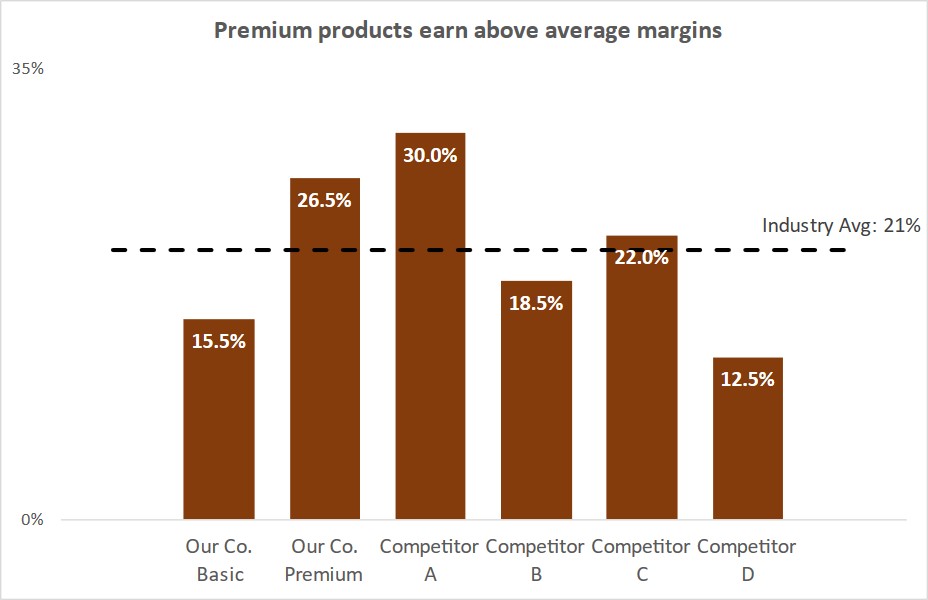
- Presenting data compared to an average or standard; Slide Makeover #31
When you compare measured values to an average or standard, make sure that the chart delivers the correct message. This makeover transforms a column chart that is easily misinterpreted and makes it clear for the audience.
Click here to watch video on Brainshark (corporate viewers)
Click here to watch video on YouTube (home viewers)
- Presenting a proportion or percentage using a diagram; Slide Makeover #24
When we present a proportion or share statistic, I would usually suggest using a pie chart. This makeover shows how a diagram with universal symbols can sometimes be more powerful than a pie chart in helping the audience understand the message.
Click here to watch video on Brainshark (corporate viewers)
Click here to watch video on YouTube (home viewers)
- Grouping a long list of information; Slide Makeover #22
Any time you need to use a second slide as a (continued) slide for a list of information, it is time to rethink the way you are presenting the list. This makeover shows a list spanning four slides transformed so that the audience has context and can better understand the information.
Click here to watch video on Brainshark (corporate viewers)
Click here to watch video on YouTube (home viewers)
- Explaining a continuous process; Slide Makeover #19
If you are showing a process that repeats on a regular basis, make sure that it is clear for the audience. This makeover shows a slide that tries to explain a cyclical process but doesn’t succeed as well as it could. The new slide tells the story clearly and is easier to understand.
Click here to watch video on Brainshark (corporate viewers)
Click here to watch video on YouTube (home viewers)
- Reporting activity visually instead of in a list; Slide Makeover #18
On a monthly, quarterly or annual basis many people report their activity to the boss, a committee or stakeholders. This makeover shows a different way to look at an activity list slide. It shows how to transform it into a slide that tells a story and is more meaningful to the audience.
Click here to watch video on Brainshark (corporate viewers)
Click here to watch video on YouTube (home viewers)
- Transforming paragraphs of text into a visual; Slide Makeover #17
Often the design of our slides actually promotes too much text and leads to reading the slides. This makeover shows a slide design that led to a slide full of text. It is transformed into a visual that is more effective and leads to action after the presentation.
Click here to watch video on Brainshark (corporate viewers)
Click here to watch video on YouTube (home viewers)
- Transforming a boring legal topic into a visual; Slide Makeover #13
Legal topics can be dry and boring if presented using slides that simply contain the words from a document. This makeover shows a slide full of legal text transformed into a clear visual that people will be able to understand and act on after the presentation.
Click here to watch video on Brainshark (corporate viewers)
Click here to watch video on YouTube (home viewers)
- Transforming a slide that is text from a manual; Slide Makeover #6
In many training situations, too much text is put on the slide. The reason is that the audience will need to refer to it later. This makeover transforms an overloaded slide into a visual slide and gives a technique for including detail in a PowerPoint file & handout without showing it on the screen.
Click here to watch video on Brainshark (corporate viewers)
Click here to watch video YouTube (home viewers)
- Transforming a boring policy & procedure slide; Slide Makeover #4
A slide with a paragraph of a policy out of a manual is transformed into a series of slides that focuses the audience and makes the information easier to understand.
Click here to watch video on Brainshark (corporate viewers)
Click here to watch video on YouTube (home viewers)
- Transforming a simple text slide by using photos; Slide Makeover #3
A slide with few simple text phrases used in Toastmasters leadership training is transformed into a visual slide that connects with the audience.
Click here to watch video on Brainshark (corporate viewers)
Click here to watch video on YouTube (home viewers)
- Multiple messages made clear; Slide Makeover #1
A text loaded slide with multiple messages is transformed into multiple visuals that lead to a clear conclusion for decision-makers.
Click here to watch video on YouTube
Healthcare
- Using an analogy to make a large number make sense; Slide Makeover #74
Presenters often struggle with how to make large numbers easy for the audience to understand. This makeover shows how using a four step process can create a visual that makes it easy for the audience to grasp the importance and magnitude of a large number.
Click here to watch the video on Brainshark (corporate viewers)
Click here to watch the video on YouTube (home viewers)
- Using tables in PowerPoint; Slide Makeover #71
A table is a good way to organize information into rows and columns. Unfortunately, the default appearance and behaviour of tables in PowerPoint does not make them as effective as they could be. This makeover shows a default table improved so the message can be communicated more effectively.
Click to watch the video on Brainshark (corporate viewers)
Click to watch the video on YouTube (home viewers)
- Designing slides for use in signage situations; Slide Makeover #62
If you use PowerPoint to design slides that will be shown on an electronic sign or on an internal TV information channel, use the ideas from this slide makeover to keep the slides clear and easy for the audience to understand.
Click here to watch the video on Brainshark (corporate viewers)
Click here to watch the video on YouTube (home viewers)
- Creating a simple visual to replace text; Slide Makeover #46
When replacing text with a visual, don’t make the mistake of thinking that you need a fancy or complex visual. This makeover shows that a simple visual combined with a good headline is much easier to create than trying to design a more complex visual; and it is more effective.
Click here to watch video on Brainshark (corporate viewers)
Click here to watch video on YouTube (home viewers)
- Creating a visual to represent a real-world situation; Slide Makeover #12
When you are describing a real-life situation or issue, too often the slides are simply words describing the idea and the slides become a transcript of what we would say. This makeover shows a slide full of descriptive text transformed into a clear visual that people will be able to understand and act on after the presentation.
Click here to watch video on Brainshark (corporate viewers)
Click here to watch video on YouTube (home viewers)
- Presenting statistics/data visually; Slide Makeover #11
When you are presenting data, too often the slides become heavy with text and numbers and become hard to understand for the audience. This makeover shows a slide that confuses the audience transformed into a clear visual that people will be able to understand and act on after the presentation.
Click here to watch video on Brainshark (corporate viewers)
Click here to watch video on YouTube (home viewers)
Training
- Using a full screen photo to enhance a story; Slide Makeover #53
Stories and analogies are important to increasing the impact of your message. Don’t just type out the key parts of the story on a slide as bullet points. Use the ideas in this makeover to show a full screen photo that increases the impact of your story or analogy.
Click here to watch video on Brainshark (corporate viewers)
Click here to watch video on YouTube (home viewers)
- Comparing items that are proportional; Slide Makeover #48
Don’t randomly draw shapes on your slide if you are comparing them because audiences interpret the proportions of the items they see on a slide. Use the ideas in this makeover to give the audience an accurate interpretation of items that are proportional.
Click here to watch video on Brainshark (corporate viewers)
Click here to watch video on YouTube (home viewers)
- Showing choices instead of listing them; Slide Makeover #47
If you are explaining what choices an audience has in a situation they are likely to encounter, don’t just list the choices as bullet points. This makeover shows how a decision tree diagram can make the thought process clear and increase the probability that the audience will apply the knowledge when faced with the situation.
Click here to watch the video on Brainshark (corporate viewers)
Click here to watch video on YouTube (home viewers)
- Making definitions interesting; Slide Makeover #44
In too many training and teaching presentations, the definitions of key terms are read verbatim from text on the slides. This makeover shows that defintions can be interesting if you connect with the audience and leave them with a definition they will remember.
Click to watch video on Brainshark (corporate viewers)
Click here to watch video on YouTube (home viewers)
- Explaining how to fill out forms in a visual way; Slide Makeover #37
As presenters, we regularly need to show our audiences how to fill out forms. In this makeover, a text slide is transformed by showing visuals that explain where to find the form and how to correctly complete it.
Click here to watch video on Brainshark (corporate viewers)
Click here to watch video on YouTube (home viewers)
- Using an analogy to show a statistic; Slide Makeover #30
Analogies are a great way to help your audience put your point in context because it relates your point to something they are familiar with. This makeover transforms a text bullet point into a visual analogy that makes the point much clearer.
Click here to watch video on Brainshark (corporate viewers)
Click here to watch video on YouTube (home viewers)
- Reformatting a list to add clarity; Slide Makeover #26
A common bullet point list is transformed by focusing on how to give the audience context and help them understand the information. It is not necessary to eliminate all text, but restructuring it often increases the effectiveness.
Click here to watch video on Brainshark (corporate viewers)
Click here to watch video on YouTube (home viewers)
- Explaining techniques using animated visuals; Slide Makeover #20
When explaining a technique, it is better to show than to tell. This makeover, supplied by a reader of “The Visual Slide Revolution”, shows how he transformed a simple, mostly text explanation, into a visual that makes the technique crystal clear to the audience.
Click here to watch video on Brainshark (corporate viewers)
Click here to watch video on YouTube (home viewers)
- Transforming a boring legal topic into a visual; Slide Makeover #13
Legal topics can be dry and boring if presented using slides that simply contain the words from a document. This makeover shows a slide full of legal text transformed into a clear visual that people will be able to understand and act on after the presentation.
Click here to watch video on Brainshark (corporate viewers)
Click here to watch video on YouTube (home viewers)
- Creating a comparison slide that keeps context; Slide Makeover #10
Whether you are comparing two positions, results at two points in time or two concepts, your audience needs to be able to keep context to understand the differences. This makeover shows two slides that lose the audience transformed into a clear visual that people will be able to remember and act on after the presentation.
Click here to watch video on Brainshark (corporate viewers)
Click here to watch video on YouTube (home viewers)
- Making a screen capture clearer; Slide Makeover #9
If you have to use a screen capture to show a feature of a program or highlight a section of a web site, make sure your audience can understand what you are showing. This makeover shows a hard-to-read screen capture transformed into a clear visual that people will be able to remember and act on after the presentation.
Click here to watch video on Brainshark (corporate viewers)
Click here to watch video on YouTube (home viewers)
- Transforming a slide that is text from a manual; Slide Makeover #6
In many training situations, too much text is put on the slide. The reason is that the audience will need to refer to it later. This makeover transforms an overloaded slide into a visual slide and gives a technique for including detail in a PowerPoint file & handout without showing it on the screen.
Click here to watch video on Brainshark (corporate viewers)
Click here to watch video YouTube (home viewers)
- Transforming a boring policy & procedure slide; Slide Makeover #4
A slide with a paragraph of a policy out of a manual is transformed into a series of slides that focuses the audience and makes the information easier to understand.
Click here to watch video on Brainshark (corporate viewers)
Click here to watch video on YouTube (home viewers)
- Transforming a simple text slide by using photos; Slide Makeover #3
A slide with few simple text phrases used in Toastmasters leadership training is transformed into a visual slide that connects with the audience.
Click here to watch video on Brainshark (corporate viewers)
Click here to watch video on YouTube (home viewers)
View videos by type of slide/visual
Text Slide/Bullet Points- Visually showing procedures that include decisions; Slide Makeover #76
In many procedures or processes, there are decisions to make that impact the outcome or end point. This makeover shows how to take a numbered list and transform it into a visual that easily communicates the decisions and the outcomes.
Click here to watch the video on slideshare (home or corporate viewers)
- Using an analogy to make a large number make sense; Slide Makeover #74
Presenters often struggle with how to make large numbers easy for the audience to understand. This makeover shows how using a four step process can create a visual that makes it easy for the audience to grasp the importance and magnitude of a large number.
Click here to watch the video on Brainshark (corporate viewers)
Click here to watch the video on YouTube (home viewers)
- Demonstrating calculations; Slide Makeover #69
It is a good idea to use calculations to back up or prove the points you are making. This makeover shows how a slide overloaded with text explanations of the calculations can become more effective.
Click to watch the video on on Brainshark (corporate viewers)
Click to watch the video on YouTube (home viewers)
- When the appeal of a full-screen photo is the wrong approach; Slide Makeover #67
We are being told to use more visuals on our slides and it is a better approach than walls of text. But if you are tempted to use a full-screen photo just because it looks cool, consider the advice from this makeover that shows how a simple visual can communicate more effectively in some cases.
Click here to watch the video on Brainshark (corporate viewers)
Click here to watch the video on YouTube (home viewers)
- Breaking the addiction to bulletizing a single point; Slide Makeover #64
In an effort to fill a slide, too many presenters break one point into multiple bullet points. This makeover shares lessons for breaking this addiction and creating visual slides that help you communicate more effectively.
Click here to watch the video on Brainshark (corporate viewers)
Click here to watch the video on YouTube (home viewers)
- Designing slides for use in signage situations; Slide Makeover #62
If you use PowerPoint to design slides that will be shown on an electronic sign or on an internal TV information channel, use the ideas from this slide makeover to keep the slides clear and easy for the audience to understand.
Click here to watch the video on Brainshark (corporate viewers)
Click here to watch the video on YouTube (home viewers)
- Using animation to help audiences understand; Slide Makeover #60
Animation is a good way to build each point as you discuss it. Instead of animation that confuses the audience, this makeover shows how to make sure you use animation properly to mak eyour message clearer.
Click here to watch video on Brainshark (corporate viewers)
Click here to watch video on YouTube (home viewers)
- Using a table to organize information; Slide Makeover #55
If you want the audience to understand results or numeric information, don’t use text on your slides that reads like your speaker notes. Use the ideas in this makeover to create a table that makes it easy for the audience to understand what the numbers mean to them.
Click here to watch the video on Brainshark (corporate viewers)
Click here to watch video on YouTube (home viewers)
- Using a timeline instead of a list of dates; Slide Makeover #54
When we want to talk about upcoming product launches or future events, the easy approach is to just list dates on a bullet point slide. This makeover shows a timeline visual that communicates the message more clearly and with greater impact.
Click here to watch video on Brainshark (corporate viewers)
Click here to watch video on YouTube (home viewers)
- Using a full screen photo to enhance a story; Slide Makeover #53
Stories and analogies are important to increasing the impact of your message. Don’t just type out the key parts of the story on a slide as bullet points. Use the ideas in this makeover to show a full screen photo that increases the impact of your story or analogy.
Click here to watch video on Brainshark (corporate viewers)
Click here to watch video on YouTube (home viewers)
- Combining multiple comparisons; Slide Makeover #51
When we want to compare one items against two or more other items, we tend to put statistics on a slide to show each individual comparison. The ideas in this makeover show how to combine all the comparisons visually to make the point with greater impact.
Click here to watch the video on Brainshark (corporate viewers)
Click here to watch video on YouTube (home viewers)
- Adding a visual to a quote; Slide Makeover #50
Quotations are commonly used to illustrate a point in a presentation. Instead of just using the text of the quote, use the ideas in this makeover to add a visual that makes the quote come alive for the audience.
Click here to watch video on Brainshark (corporate viewers)
Click here to watch video on YouTube (home viewers)
- Showing choices instead of listing them; Slide Makeover #47
If you are explaining what choices an audience has in a situation they are likely to encounter, don’t just list the choices as bullet points. This makeover shows how a decision tree diagram can make the thought process clear and increase the probability that the audience will apply the knowledge when faced with the situation.
Click here to watch the video on Brainshark (corporate viewers)
Click here to watch video on YouTube (home viewers)
- Creating a simple visual to replace text; Slide Makeover #46
When replacing text with a visual, don’t make the mistake of thinking that you need a fancy or complex visual. This makeover shows that a simple visual combined with a good headline is much easier to create than trying to design a more complex visual; and it is more effective.
Click here to watch video on Brainshark (corporate viewers)
Click here to watch video on YouTube (home viewers)
- Making definitions interesting; Slide Makeover #44
In too many training and teaching presentations, the definitions of key terms are read verbatim from text on the slides. This makeover shows that defintions can be interesting if you connect with the audience and leave them with a definition they will remember.
Click to watch video on Brainshark (corporate viewers)
Click here to watch video on YouTube (home viewers)
- Making a list connect with an audience; Slide Makeover #43
If you present a long text list on a slide, it overwhelms the audience and they tune out. Use the ideas in this makeover to find a visual that connects and illustrates the point you want to make.
Click here to watch video on Brainshark (corporate viewers)
Click here to watch video on YouTube (home viewers)
- Presenting Test or Measurement Procedures; Slide Makeover #39
Presenting tests or measurements usually includes talking about how often the testing is done and what tests were performed. Don’t use bullet filled slides, use the ideas in this makeover to organize the information visually so it is clear for your audience.
Click here to watch video on Brainshark (corporate viewers)
Click here to watch video on YouTube (home viewers)
- Explaining how to fill out forms in a visual way; Slide Makeover #37
As presenters, we regularly need to show our audiences how to fill out forms. In this makeover, a text slide is transformed by showing visuals that explain where to find the form and how to correctly complete it.
Click here to watch video on Brainshark (corporate viewers)
Click here to watch video on YouTube (home viewers)
- Explaining relationships between roles; Slide Makeover #34
Instead of writing paragraphs to explain each role in a situation or organization, use the ideas in this makeover to create a visual that the audience can easily follow.
Click here to watch video on Brainshark (corporate viewers)
Click here to watch video on YouTube (home viewers)
- Explaining methods of calculating figures; Slide Makeover #33
If you have to explain the calculations you did or methodology used to create your results, don’t use paragraphs on the slide. Instead, like this makeover shows, illustrate the methods using a simple approach and examples.
Click here to watch video on Brainshark (corporate viewers)
Click here to watch video on YouTube (home viewers)
- Using an analogy to show a statistic; Slide Makeover #30
Analogies are a great way to help your audience put your point in context because it relates your point to something they are familiar with. This makeover transforms a text bullet point into a visual analogy that makes the point much clearer.
Click here to watch video on Brainshark (corporate viewers)
Click here to watch video on YouTube (home viewers)
- Putting multiple visuals on a slide; Slide Makeover #29
Sometimes you are restricted in the number of slides you can use and may need to put more than one idea on a slide. This makeover shows how to put two related ideas on a slide using persuasive visuals.
Click here to watch video on Brainshark (corporate viewers)
Click here to watch video on YouTube (home viewers)
- Presenting people-based statistics visually; Slide Makeover #28
Often presentations need to include statistics. When those statistics are about people, consider showing pictures of people instead of just quoting the text and numbers. It helps the audience connect with what the statistic means to them.
Click here to watch video on Brainshark (corporate viewers)
Click here to watch video on YouTube (home viewers)
- Reformatting a list to add clarity; Slide Makeover #26
A common bullet point list is transformed by focusing on how to give the audience context and help them understand the information. It is not necessary to eliminate all text, but restructuring it often increases the effectiveness.
Click here to watch video on Brainshark (corporate viewers)
Click here to watch video on YouTube (home viewers)
- Presenting a proportion or percentage using a diagram; Slide Makeover #24
When we present a proportion or share statistic, I would usually suggest using a pie chart. This makeover shows how a diagram with universal symbols can sometimes be more powerful than a pie chart in helping the audience understand the message.
Click here to watch video on Brainshark (corporate viewers)
Click here to watch video on YouTube (home viewers)
- Grouping a long list of information; Slide Makeover #22
Any time you need to use a second slide as a (continued) slide for a list of information, it is time to rethink the way you are presenting the list. This makeover shows a list spanning four slides transformed so that the audience has context and can better understand the information.
Click here to watch video on Brainshark (corporate viewers)
Click here to watch video on YouTube (home viewers)
- Telling a visual story when using an analogy; Slide Makeover #21
Analogies are a good way to help the audience understand your point. But if the analogy is unclear, it hinders instead of helps. This makeover shows a more visual way to use an analogy to make the point more effectively.
Click here to watch video on Brainshark (corporate viewers)
Click here to watch video on YouTube (home viewers)
- Explaining techniques using animated visuals; Slide Makeover #20
When explaining a technique, it is better to show than to tell. This makeover, supplied by a reader of “The Visual Slide Revolution”, shows how he transformed a simple, mostly text explanation, into a visual that makes the technique crystal clear to the audience.
Click here to watch video on Brainshark (corporate viewers)
Click here to watch video on YouTube (home viewers)
- Reporting activity visually instead of in a list; Slide Makeover #18
On a monthly, quarterly or annual basis many people report their activity to the boss, a committee or stakeholders. This makeover shows a different way to look at an activity list slide. It shows how to transform it into a slide that tells a story and is more meaningful to the audience.
Click here to watch video on Brainshark (corporate viewers)
Click here to watch video on YouTube (home viewers)
- Transforming paragraphs of text into a visual; Slide Makeover #17
Often the design of our slides actually promotes too much text and leads to reading the slides. This makeover shows a slide design that led to a slide full of text. It is transformed into a visual that is more effective and leads to action after the presentation.
Click here to watch video on Brainshark (corporate viewers)
Click here to watch video on YouTube (home viewers)
- Showing time based information with a calendar visual; Slide Makeover #16
When you are talking about date based events or information, don’t use a simple list of the dates with no visual. This makeover shows a slide with a list of dates transformed into a clear visual that people will be able to understand and act on after the presentation.
Click here to watch video on Brainshark (corporate viewers)
Click here to watch video on YouTube (home viewers)
- Showing changes in calculations visually; Slide Makeover #14
When you are presenting a calculation and how changes will affect it, make sure you do it so that the information is clearly understood. This makeover shows a slide with a confusing calculation transformed into a clear visual that people will be able to understand and act on after the presentation.
Click here to watch video on Brainshark (corporate viewers)
Click here to watch video on YouTube (home viewers)
- Transforming a boring legal topic into a visual; Slide Makeover #13
Legal topics can be dry and boring if presented using slides that simply contain the words from a document. This makeover shows a slide full of legal text transformed into a clear visual that people will be able to understand and act on after the presentation.
Click here to watch video on Brainshark (corporate viewers)
Click here to watch video on YouTube (home viewers)
- Creating a visual to represent a real-world situation; Slide Makeover #12
When you are describing a real-life situation or issue, too often the slides are simply words describing the idea and the slides become a transcript of what we would say. This makeover shows a slide full of descriptive text transformed into a clear visual that people will be able to understand and act on after the presentation.
Click here to watch video on Brainshark (corporate viewers)
Click here to watch video on YouTube (home viewers)
- Presenting statistics/data visually; Slide Makeover #11
When you are presenting data, too often the slides become heavy with text and numbers and become hard to understand for the audience. This makeover shows a slide that confuses the audience transformed into a clear visual that people will be able to understand and act on after the presentation.
Click here to watch video on Brainshark (corporate viewers)
Click here to watch video on YouTube (home viewers)
- Creating a comparison slide that keeps context; Slide Makeover #10
Whether you are comparing two positions, results at two points in time or two concepts, your audience needs to be able to keep context to understand the differences. This makeover shows two slides that lose the audience transformed into a clear visual that people will be able to remember and act on after the presentation.
Click here to watch video on Brainshark (corporate viewers)
Click here to watch video on YouTube (home viewers)
- Transforming a slide that is text from a manual; Slide Makeover #6
In many training situations, too much text is put on the slide. The reason is that the audience will need to refer to it later. This makeover transforms an overloaded slide into a visual slide and gives a technique for including detail in a PowerPoint file & handout without showing it on the screen.
Click here to watch video on Brainshark (corporate viewers)
Click here to watch video YouTube (home viewers)
- Transforming the About Our Company slide; Slide Makeover #5
A commonly used slide, the “About Us” slide, is transformed into a series of slides that show the the audience why they should care about all these facts and makes the impact you want.
Click here to watch video on Brainshark (corporate viewers)
Click here to watch video on YouTube (home viewers)
- Transforming a boring policy & procedure slide; Slide Makeover #4
A slide with a paragraph of a policy out of a manual is transformed into a series of slides that focuses the audience and makes the information easier to understand.
Click here to watch video on Brainshark (corporate viewers)
Click here to watch video on YouTube (home viewers)
- Transforming a simple text slide by using photos; Slide Makeover #3
A slide with few simple text phrases used in Toastmasters leadership training is transformed into a visual slide that connects with the audience.
Click here to watch video on Brainshark (corporate viewers)
Click here to watch video on YouTube (home viewers)
- Multiple messages made clear; Slide Makeover #1
A text loaded slide with multiple messages is transformed into multiple visuals that lead to a clear conclusion for decision-makers.
Click here to watch video on YouTube
Graph
- Transforming data dump slides; Slide Makeover #75
It is too easy to jump dump a ton of data on a slide and hope the audience figures out what it means. This makeover shows what can be done with a huge table of data to make it meaningful to the audience.
Click here to watch the video on Brainshark (corporate viewers)
Click here to watch the video on slideshare (home or corporate viewers)
- Making proportions stand out; Slide Makeover #73
A pie chart is better than a data table to show proportions in data. This makeover takes it the next step to show how a proportional diagram can be more effective than a pie chart in some situations.
Click here to watch the video on Brainshark (corporate viewers)
Click here to watch the video on YouTube (home viewers)
- Distracting background images (uses slide from Gov Cuomo); Slide Makeover #68
Using an image as the background for your slide might seem like a way to increase the visual appeal of your slides, but it can actually distract the audience from your message. This makeover takes a slide used by NY Gov Cuomo and shows how the message could stand out more without an image background.
Click here to watch video on Brainshark (corporate viewers)
Click here to watch the video on YouTube (home viewers)
- Using a common denominator for comparisons; Slide Makeover #65
If you want your audience to understand a comparison of two or more values, you must make it easy for them to see the difference without having to do calculations in their head. This makeover shows how to use a common denominator to make the comparison easy to understand.
Click here to watch the video on Brainshark (corporate viewers)
Click here to watch the video on YouTube (home viewers)
- Making multiple messages easier to understand; Slide Makeover #61
When you put multiple messages on one slide, it confuses the audience. This makeover shows how you can deliver an effective message by having one message per slide.
Click here to watch video on Brainshark (corporate viewers)
Click here to watch video on YouTube (home viewers)
- Making Excel spreadsheets meaningful – Part 2; Slide Makeover #59
This makeover continues the discussion of ways to make financial figures from Excel more meaningful. It shows how to create a graph that clearly communicates the message and how to use a hyperlink to the spreadsheet in order to answer detailed questions that may come up.
Click here to watch video on Brainshark (corporate viewers)
Click here to watch video on YouTube (home viewers)
- Revealing infographics one portion at a time; Slide Makeover #57
Infographics are a popular way to illustrate information, especially for print publications. When used in presentations, they can sometimes be overwhelming. Use the ideas in this makeover to reveal the portions of the infographic one at a time to keep the focus of your audience.
Click here to watch video on Brainshark (corporate viewers)
Click here to watch video on YouTube (home viewers)
- Layering the discussion of detailed data; Slide Makeover #52
Often we need to present detailed data that has come from analysis. Instead of overwhelming your audience by putting all the data on a slide, use the ideas in this makeover to layer the discussion of the data so it makes sense and the audience can understand and act on it.
Click here to watch video on Brainshark (corporate viewers)
Click here to watch video on YouTube (home viewers)
- Combining multiple comparisons; Slide Makeover #51
When we want to compare one items against two or more other items, we tend to put statistics on a slide to show each individual comparison. The ideas in this makeover show how to combine all the comparisons visually to make the point with greater impact.
Click here to watch the video on Brainshark (corporate viewers)
Click here to watch video on YouTube (home viewers)
- Showing differences in magnitude; Slide Makeover #49
To many presenters, numbers are the natural way to show differences in magnitude; and the more numbers the better. Our audiences get overwhelmed by all the numbers and miss the point unless we use the lessons in this makeover to turn the numbers into a visual that shows the difference clearly.
Click here to watch video on Brainshark (corporate viewers)
Click here to watch video on YouTube (home viewers)
- Comparing information at two points in time; Slide Makeover #42
Too often presenters lose the audience when presenting a comparison at two points in time. This makeover shows how to visually present the comparison in a way that is easy for the audience to understand.
Click here to watch video on Brainshark (corporate viewers)
Click here to watch video on YouTube (home viewers)
- Explaining components of a difference; Slide Makeover #41
When comparing financial figures between two periods, one of the common messages we need to communicate is what makes up the difference between the two figures. Instead of just pasting an Excel sheet on your slide, use the ideas in this makeover to break down the difference visually and make each component clear to your audience.
Click here to watch video on Brainshark (corporate viewers)
Click here to watch video on YouTube (home viewers)
- Making graphs from other sources easier to understand; Slide Makeover #38
When we get graphs as graphics from other sources, we think there is nothing we can do with them. This makeover shows how to take a graph image and make it more effective using tools in PowerPoint.
Click here to watch video on Brainshark (corporate viewers)
Click here to watch video on YouTube (home viewers)
- Reducing the clutter of graph labels to make it easy to understand; Slide Makeover #36
Presenters struggle with graphs that are cluttered with too much information that takes away from the data being shown. This makeover shows how to clean up a graph to make it clear for the audience.
Click here to watch video on Brainshark (corporate viewers)
Click here to watch video on YouTube (home viewers)
- Explaining accumulation of changes; Slide Makeover #35
When different factors add up to an overall financial change, many presenters use a stacked column graph with a legend. This makeover shows how to create a better visual that makes each change clear and easy to understand.
Click here to watch the video on Brainshark (corporate viewers)
Click here to watch video on YouTube (home viewers)
- Showing movement of measured values visually instead of a table of numbers; Slide Makeover #32
When you want to show numeric values that have moved between two tests or time periods, don’t use a copied Excel table on your slide. This makeover shows how to use a visual with appropriate movement animation to illustrate the results.
Click here to watch video on Brainshark (corporate viewers)
Click here to watch video on YouTube (home viewers)
- Presenting data compared to an average or standard; Slide Makeover #31
When you compare measured values to an average or standard, make sure that the chart delivers the correct message. This makeover transforms a column chart that is easily misinterpreted and makes it clear for the audience.
Click here to watch video on Brainshark (corporate viewers)
Click here to watch video on YouTube (home viewers)
- Putting multiple visuals on a slide; Slide Makeover #29
Sometimes you are restricted in the number of slides you can use and may need to put more than one idea on a slide. This makeover shows how to put two related ideas on a slide using persuasive visuals.
Click here to watch video on Brainshark (corporate viewers)
Click here to watch video on YouTube (home viewers)
- Presenting performance against an acceptable range; Slide Makeover #27
When showing financial and operational performance against targets, it is common to use a table of figures. This makeover shows how to transform one of the measurements into a graph that effectively communicates to the audience that planned performance is within an acceptable range.
- Presenting survey results when multiple answers are possible; Slide Makeover #25
When someone showed a way to make survey statistics more visual, they made a few key errors. This makeover shows the correct visual for survey results so the audience understands them and trusts them.
Click here to watch video on Brainshark (corporate viewers)
Click here to watch video on YouTube (home viewers)
- Presenting statistics/data visually; Slide Makeover #11
When you are presenting data, too often the slides become heavy with text and numbers and become hard to understand for the audience. This makeover shows a slide that confuses the audience transformed into a clear visual that people will be able to understand and act on after the presentation.
Click here to watch video on Brainshark (corporate viewers)
Click here to watch video on YouTube (home viewers)
- Survey data made clear; Slide Makeover #2
A slide with tons of data from a survey is transformed into a series of visuals that communicate clearly to decision-makers.
Click here to watch video on YouTube
- Multiple messages made clear; Slide Makeover #1
A text loaded slide with multiple messages is transformed into multiple visuals that lead to a clear conclusion for decision-makers.
Click here to watch video on YouTube
Photo/image
- Using an analogy to make a large number make sense; Slide Makeover #74
Presenters often struggle with how to make large numbers easy for the audience to understand. This makeover shows how using a four step process can create a visual that makes it easy for the audience to grasp the importance and magnitude of a large number.
Click here to watch the video on Brainshark (corporate viewers)
Click here to watch the video on YouTube (home viewers)
- Demonstrating calculations; Slide Makeover #69
It is a good idea to use calculations to back up or prove the points you are making. This makeover shows how a slide overloaded with text explanations of the calculations can become more effective.
Click to watch the video on on Brainshark (corporate viewers)
Click to watch the video on YouTube (home viewers)
- Distracting background images (uses slide from Gov Cuomo); Slide Makeover #68
Using an image as the background for your slide might seem like a way to increase the visual appeal of your slides, but it can actually distract the audience from your message. This makeover takes a slide used by NY Gov Cuomo and shows how the message could stand out more without an image background.
Click here to watch video on Brainshark (corporate viewers)
Click here to watch the video on YouTube (home viewers)
- When the appeal of a full-screen photo is the wrong approach; Slide Makeover #67
We are being told to use more visuals on our slides and it is a better approach than walls of text. But if you are tempted to use a full-screen photo just because it looks cool, consider the advice from this makeover that shows how a simple visual can communicate more effectively in some cases.
Click here to watch the video on Brainshark (corporate viewers)
Click here to watch the video on YouTube (home viewers)
- The downside of SmartArt; Slide Makeover #66
SmartArt is supposed to make creating visuals easy, but too often presenters use it without considering whether the pre-made diagram is effectively communicating their message. This makeover shows an example of how a SmartArt diagram can be replaced with a more effective simple visual.
Click here to watch video on Brainshark (corporate viewers)
Click here to watch video on YouTube (home viewers)
- Breaking the addiction to bulletizing a single point; Slide Makeover #64
In an effort to fill a slide, too many presenters break one point into multiple bullet points. This makeover shares lessons for breaking this addiction and creating visual slides that help you communicate more effectively.
Click here to watch the video on Brainshark (corporate viewers)
Click here to watch the video on YouTube (home viewers)
- Designing slides for use in signage situations; Slide Makeover #62
If you use PowerPoint to design slides that will be shown on an electronic sign or on an internal TV information channel, use the ideas from this slide makeover to keep the slides clear and easy for the audience to understand.
Click here to watch the video on Brainshark (corporate viewers)
Click here to watch the video on YouTube (home viewers)
- Revealing infographics one portion at a time; Slide Makeover #57
Infographics are a popular way to illustrate information, especially for print publications. When used in presentations, they can sometimes be overwhelming. Use the ideas in this makeover to reveal the portions of the infographic one at a time to keep the focus of your audience.
Click here to watch video on Brainshark (corporate viewers)
Click here to watch video on YouTube (home viewers)
- Emphasis in a diagram image by shading out a portion; Slide Makeover #56
When a diagram comes to us as an image, it is more difficult to focus the audience’s attention because they can see the entire image. Use the techniques in this makeover to emphasize a portion by shading out the areas you don’t want the audience to focus on.
Click here to watch video on Brainshark (corporate viewers)
Click here to watch video on YouTube (home viewers)
- Using a timeline instead of a list of dates; Slide Makeover #54
When we want to talk about upcoming product launches or future events, the easy approach is to just list dates on a bullet point slide. This makeover shows a timeline visual that communicates the message more clearly and with greater impact.
Click here to watch video on Brainshark (corporate viewers)
Click here to watch video on YouTube (home viewers)
- Using a full screen photo to enhance a story; Slide Makeover #53
Stories and analogies are important to increasing the impact of your message. Don’t just type out the key parts of the story on a slide as bullet points. Use the ideas in this makeover to show a full screen photo that increases the impact of your story or analogy.
Click here to watch video on Brainshark (corporate viewers)
Click here to watch video on YouTube (home viewers)
- Layering the discussion of detailed data; Slide Makeover #52
Often we need to present detailed data that has come from analysis. Instead of overwhelming your audience by putting all the data on a slide, use the ideas in this makeover to layer the discussion of the data so it makes sense and the audience can understand and act on it.
Click here to watch video on Brainshark (corporate viewers)
Click here to watch video on YouTube (home viewers)
- Adding a visual to a quote; Slide Makeover #50
Quotations are commonly used to illustrate a point in a presentation. Instead of just using the text of the quote, use the ideas in this makeover to add a visual that makes the quote come alive for the audience.
Click here to watch video on Brainshark (corporate viewers)
Click here to watch video on YouTube (home viewers)
- Transforming speaker notes into a visual; Slide Makeover #45
Far too many slides are, in reality, notes for the speaker to remember what they are supposed to say. The slides end up being read to the audience. This makeover takes a wordy slide and the accompanying speaking notes and shows how the clues hidden in the text can lead to a more effective visual.
Click here to watch video on Brainshark (corporate viewers)
Click here to watch video on YouTube (home viewers)
- Making definitions interesting; Slide Makeover #44
In too many training and teaching presentations, the definitions of key terms are read verbatim from text on the slides. This makeover shows that defintions can be interesting if you connect with the audience and leave them with a definition they will remember.
Click to watch video on Brainshark (corporate viewers)
Click here to watch video on YouTube (home viewers)
- Making a list connect with an audience; Slide Makeover #43
If you present a long text list on a slide, it overwhelms the audience and they tune out. Use the ideas in this makeover to find a visual that connects and illustrates the point you want to make.
Click here to watch video on Brainshark (corporate viewers)
Click here to watch video on YouTube (home viewers)
- Making graphs from other sources easier to understand; Slide Makeover #38
When we get graphs as graphics from other sources, we think there is nothing we can do with them. This makeover shows how to take a graph image and make it more effective using tools in PowerPoint.
Click here to watch video on Brainshark (corporate viewers)
Click here to watch video on YouTube (home viewers)
- Explaining how to fill out forms in a visual way; Slide Makeover #37
As presenters, we regularly need to show our audiences how to fill out forms. In this makeover, a text slide is transformed by showing visuals that explain where to find the form and how to correctly complete it.
Click here to watch video on Brainshark (corporate viewers)
Click here to watch video on YouTube (home viewers)
- Using an analogy to show a statistic; Slide Makeover #30
Analogies are a great way to help your audience put your point in context because it relates your point to something they are familiar with. This makeover transforms a text bullet point into a visual analogy that makes the point much clearer.
Click here to watch video on Brainshark (corporate viewers)
Click here to watch video on YouTube (home viewers)
- Presenting people-based statistics visually; Slide Makeover #28
Often presentations need to include statistics. When those statistics are about people, consider showing pictures of people instead of just quoting the text and numbers. It helps the audience connect with what the statistic means to them.
Click here to watch video on Brainshark (corporate viewers)
Click here to watch video on YouTube (home viewers)
- Grouping a long list of information; Slide Makeover #22
Any time you need to use a second slide as a (continued) slide for a list of information, it is time to rethink the way you are presenting the list. This makeover shows a list spanning four slides transformed so that the audience has context and can better understand the information.
Click here to watch video on Brainshark (corporate viewers)
Click here to watch video on YouTube (home viewers)
- Telling a visual story when using an analogy; Slide Makeover #21
Analogies are a good way to help the audience understand your point. But if the analogy is unclear, it hinders instead of helps. This makeover shows a more visual way to use an analogy to make the point more effectively.
Click here to watch video on Brainshark (corporate viewers)
Click here to watch video on YouTube (home viewers)
- Explaining techniques using animated visuals; Slide Makeover #20
When explaining a technique, it is better to show than to tell. This makeover, supplied by a reader of “The Visual Slide Revolution”, shows how he transformed a simple, mostly text explanation, into a visual that makes the technique crystal clear to the audience.
Click here to watch video on Brainshark (corporate viewers)
Click here to watch video on YouTube (home viewers)
- Explaining a continuous process; Slide Makeover #19
If you are showing a process that repeats on a regular basis, make sure that it is clear for the audience. This makeover shows a slide that tries to explain a cyclical process but doesn’t succeed as well as it could. The new slide tells the story clearly and is easier to understand.
Click here to watch video on Brainshark (corporate viewers)
Click here to watch video on YouTube (home viewers)
- Reporting activity visually instead of in a list; Slide Makeover #18
On a monthly, quarterly or annual basis many people report their activity to the boss, a committee or stakeholders. This makeover shows a different way to look at an activity list slide. It shows how to transform it into a slide that tells a story and is more meaningful to the audience.
Click here to watch video on Brainshark (corporate viewers)
Click here to watch video on YouTube (home viewers)
- Transforming paragraphs of text into a visual; Slide Makeover #17
Often the design of our slides actually promotes too much text and leads to reading the slides. This makeover shows a slide design that led to a slide full of text. It is transformed into a visual that is more effective and leads to action after the presentation.
Click here to watch video on Brainshark (corporate viewers)
Click here to watch video on YouTube (home viewers)
- Transforming a boring legal topic into a visual; Slide Makeover #13
Legal topics can be dry and boring if presented using slides that simply contain the words from a document. This makeover shows a slide full of legal text transformed into a clear visual that people will be able to understand and act on after the presentation.
Click here to watch video on Brainshark (corporate viewers)
Click here to watch video on YouTube (home viewers)
- Creating a visual to represent a real-world situation; Slide Makeover #12
When you are describing a real-life situation or issue, too often the slides are simply words describing the idea and the slides become a transcript of what we would say. This makeover shows a slide full of descriptive text transformed into a clear visual that people will be able to understand and act on after the presentation.
Click here to watch video on Brainshark (corporate viewers)
Click here to watch video on YouTube (home viewers)
- Creating a comparison slide that keeps context; Slide Makeover #10
Whether you are comparing two positions, results at two points in time or two concepts, your audience needs to be able to keep context to understand the differences. This makeover shows two slides that lose the audience transformed into a clear visual that people will be able to remember and act on after the presentation.
Click here to watch video on Brainshark (corporate viewers)
Click here to watch video on YouTube (home viewers)
- Making a screen capture clearer; Slide Makeover #9
If you have to use a screen capture to show a feature of a program or highlight a section of a web site, make sure your audience can understand what you are showing. This makeover shows a hard-to-read screen capture transformed into a clear visual that people will be able to remember and act on after the presentation.
Click here to watch video on Brainshark (corporate viewers)
Click here to watch video on YouTube (home viewers)
- Transforming a confusing pyramid visual; Slide Makeover #7
Just adding a visual to your slides is not enough – it must have context so the audience can understand it. This makeover shows a visual and how it can be recreated to have a much better impact on the audience.
Click here to watch video on Brainshark (corporate viewers)
Click here to watch video on YouTube (home viewers)
- Transforming a slide that is text from a manual; Slide Makeover #6
In many training situations, too much text is put on the slide. The reason is that the audience will need to refer to it later. This makeover transforms an overloaded slide into a visual slide and gives a technique for including detail in a PowerPoint file & handout without showing it on the screen.
Click here to watch video on Brainshark (corporate viewers)
Click here to watch video YouTube (home viewers)
- Transforming the About Our Company slide; Slide Makeover #5
A commonly used slide, the “About Us” slide, is transformed into a series of slides that show the the audience why they should care about all these facts and makes the impact you want.
Click here to watch video on Brainshark (corporate viewers)
Click here to watch video on YouTube (home viewers)
- Transforming a boring policy & procedure slide; Slide Makeover #4
A slide with a paragraph of a policy out of a manual is transformed into a series of slides that focuses the audience and makes the information easier to understand.
Click here to watch video on Brainshark (corporate viewers)
Click here to watch video on YouTube (home viewers)
- Transforming a simple text slide by using photos; Slide Makeover #3
A slide with few simple text phrases used in Toastmasters leadership training is transformed into a visual slide that connects with the audience.
Click here to watch video on Brainshark (corporate viewers)
Click here to watch video on YouTube (home viewers)
- Multiple messages made clear; Slide Makeover #1
A text loaded slide with multiple messages is transformed into multiple visuals that lead to a clear conclusion for decision-makers.
Click here to watch video on YouTube
Diagram
- Visually showing procedures that include decisions; Slide Makeover #76
In many procedures or processes, there are decisions to make that impact the outcome or end point. This makeover shows how to take a numbered list and transform it into a visual that easily communicates the decisions and the outcomes.
Click here to watch the video on slideshare (home or corporate viewers)
- Using an analogy to make a large number make sense; Slide Makeover #74
Presenters often struggle with how to make large numbers easy for the audience to understand. This makeover shows how using a four step process can create a visual that makes it easy for the audience to grasp the importance and magnitude of a large number.
Click here to watch the video on Brainshark (corporate viewers)
Click here to watch the video on YouTube (home viewers)
- Making proportions stand out; Slide Makeover #73
A pie chart is better than a data table to show proportions in data. This makeover takes it the next step to show how a proportional diagram can be more effective than a pie chart in some situations.
Click here to watch the video on Brainshark (corporate viewers)
Click here to watch the video on YouTube (home viewers)
- Using proportional diagrams (example from Pres. Obama SOTU); Slide Makeover #70
In the recent State of the Union address, President Obama used some visuals in the enhanced broadcast on the web. One of those visuals was a proportional diagram. This makeover shows how you can use a proportional diagram effectively on a slide.
Click to watch the video on Brainshark (corporate viewers)
Click to watch the video on YouTube (home viewers)
- When the appeal of a full-screen photo is the wrong approach; Slide Makeover #67
We are being told to use more visuals on our slides and it is a better approach than walls of text. But if you are tempted to use a full-screen photo just because it looks cool, consider the advice from this makeover that shows how a simple visual can communicate more effectively in some cases.
Click here to watch the video on Brainshark (corporate viewers)
Click here to watch the video on YouTube (home viewers)
- The downside of SmartArt; Slide Makeover #66
SmartArt is supposed to make creating visuals easy, but too often presenters use it without considering whether the pre-made diagram is effectively communicating their message. This makeover shows an example of how a SmartArt diagram can be replaced with a more effective simple visual.
Click here to watch video on Brainshark (corporate viewers)
Click here to watch video on YouTube (home viewers)
- Presenting organizational charts; Slide Makeover #63
It is common in corporate settings to present an organization chart to show the different roles in a department. Instead of overwhelming your audience with an unreadable chart, use the lessons in this makeover to create a clear set of slides.
Click here to watch the video on Brainshark (corporate viewers)
Click here to watch the video on YouTube (home viewers)
- Using animation to help audiences understand; Slide Makeover #60
Animation is a good way to build each point as you discuss it. Instead of animation that confuses the audience, this makeover shows how to make sure you use animation properly to mak eyour message clearer.
Click here to watch video on Brainshark (corporate viewers)
Click here to watch video on YouTube (home viewers)
- Emphasis in a diagram image by shading out a portion; Slide Makeover #56
When a diagram comes to us as an image, it is more difficult to focus the audience’s attention because they can see the entire image. Use the techniques in this makeover to emphasize a portion by shading out the areas you don’t want the audience to focus on.
Click here to watch video on Brainshark (corporate viewers)
Click here to watch video on YouTube (home viewers)
- Using a table to organize information; Slide Makeover #55
If you want the audience to understand results or numeric information, don’t use text on your slides that reads like your speaker notes. Use the ideas in this makeover to create a table that makes it easy for the audience to understand what the numbers mean to them.
Click here to watch the video on Brainshark (corporate viewers)
Click here to watch video on YouTube (home viewers)
- Comparing items that are proportional; Slide Makeover #48
Don’t randomly draw shapes on your slide if you are comparing them because audiences interpret the proportions of the items they see on a slide. Use the ideas in this makeover to give the audience an accurate interpretation of items that are proportional.
Click here to watch video on Brainshark (corporate viewers)
Click here to watch video on YouTube (home viewers)
- Showing choices instead of listing them; Slide Makeover #47
If you are explaining what choices an audience has in a situation they are likely to encounter, don’t just list the choices as bullet points. This makeover shows how a decision tree diagram can make the thought process clear and increase the probability that the audience will apply the knowledge when faced with the situation.
Click here to watch the video on Brainshark (corporate viewers)
Click here to watch video on YouTube (home viewers)
- Making a list connect with an audience; Slide Makeover #43
If you present a long text list on a slide, it overwhelms the audience and they tune out. Use the ideas in this makeover to find a visual that connects and illustrates the point you want to make.
Click here to watch video on Brainshark (corporate viewers)
Click here to watch video on YouTube (home viewers)
- Presenting Test or Measurement Procedures; Slide Makeover #39
Presenting tests or measurements usually includes talking about how often the testing is done and what tests were performed. Don’t use bullet filled slides, use the ideas in this makeover to organize the information visually so it is clear for your audience.
Click here to watch video on Brainshark (corporate viewers)
Click here to watch video on YouTube (home viewers)
- Explaining relationships between roles; Slide Makeover #34
Instead of writing paragraphs to explain each role in a situation or organization, use the ideas in this makeover to create a visual that the audience can easily follow.
Click here to watch video on Brainshark (corporate viewers)
Click here to watch video on YouTube (home viewers)
- Using an analogy to show a statistic; Slide Makeover #30
Analogies are a great way to help your audience put your point in context because it relates your point to something they are familiar with. This makeover transforms a text bullet point into a visual analogy that makes the point much clearer.
Click here to watch video on Brainshark (corporate viewers)
Click here to watch video on YouTube (home viewers)
- Putting multiple visuals on a slide; Slide Makeover #29
Sometimes you are restricted in the number of slides you can use and may need to put more than one idea on a slide. This makeover shows how to put two related ideas on a slide using persuasive visuals.
Click here to watch video on Brainshark (corporate viewers)
Click here to watch video on YouTube (home viewers)
- Presenting a proportion or percentage using a diagram; Slide Makeover #24
When we present a proportion or share statistic, I would usually suggest using a pie chart. This makeover shows how a diagram with universal symbols can sometimes be more powerful than a pie chart in helping the audience understand the message.
Click here to watch video on Brainshark (corporate viewers)
Click here to watch video on YouTube (home viewers)
- Presenting a complex diagram; Slide Makeover #23
Seth Godin and PC World describe this slide as one of the worst PowerPoint slides ever. The complex diagram makes it impossible to understand what the message is. This makeover shows a better way to present complex diagrams so the audience understands the ideas.
Click here to watch video on Brainshark (corporate viewers)
Click here to watch video on YouTube (home viewers)
- Explaining a continuous process; Slide Makeover #19
If you are showing a process that repeats on a regular basis, make sure that it is clear for the audience. This makeover shows a slide that tries to explain a cyclical process but doesn’t succeed as well as it could. The new slide tells the story clearly and is easier to understand.
Click here to watch video on Brainshark (corporate viewers)
Click here to watch video on YouTube (home viewers)
- Showing time based information with a calendar visual; Slide Makeover #16
When you are talking about date based events or information, don’t use a simple list of the dates with no visual. This makeover shows a slide with a list of dates transformed into a clear visual that people will be able to understand and act on after the presentation.
Click here to watch video on Brainshark (corporate viewers)
Click here to watch video on YouTube (home viewers)
- Showing changes between time periods; Slide Makeover #15
When you are showing changes over a time period, avoid confusing the audience with an overloaded visual. This makeover shows a slide with a confusing diagram transformed into a series of clear visuals that people will be able to understand and act on after the presentation.
Click here to watch video on Brainshark (corporate viewers)
Click here to watch video on YouTube (home viewers)
- Transforming a confusing pyramid visual; Slide Makeover #7
Just adding a visual to your slides is not enough – it must have context so the audience can understand it. This makeover shows a visual and how it can be recreated to have a much better impact on the audience.
Click here to watch video on Brainshark (corporate viewers)
Click here to watch video on YouTube (home viewers)
- Multiple messages made clear; Slide Makeover #1
A text loaded slide with multiple messages is transformed into multiple visuals that lead to a clear conclusion for decision-makers.
Click here to watch video on YouTube
Spreadsheet
- Transforming data dump slides; Slide Makeover #75
It is too easy to jump dump a ton of data on a slide and hope the audience figures out what it means. This makeover shows what can be done with a huge table of data to make it meaningful to the audience.
Click here to watch the video on Brainshark (corporate viewers)
Click here to watch the video on slideshare (home or corporate viewers)
- Revealing details in levels; Slide Makeover #72
Too often presenters overwhelm audiences with details using a spreadsheet copied on to a slide. This makeover shows how you can reveal details in levels so the audience can follow your message easier.
Click here to watch the video on Brainshark (corporate viewers)
Click here to watch the video on YouTube (home viewers)
- Making Excel spreadsheets meaningful – Part 2; Slide Makeover #59
This makeover continues the discussion of ways to make financial figures from Excel more meaningful. It shows how to create a graph that clearly communicates the message and how to use a hyperlink to the spreadsheet in order to answer detailed questions that may come up.
Click here to watch video on Brainshark (corporate viewers)
Click here to watch video on YouTube (home viewers)
- Making Excel spreadsheets meaningful – Part 1; Slide Makeover #58
When financial figures need to be included in a presentation, too often an Excel spreadsheet is copied on to a slide. It overwhelms the audience and the message is lost. Use the ideas in this makeover to focus the audience on the few key numbers they need to know in order to understand your message.
Click here to watch video on Brainshark (corporate viewers)
Click here to watch video on YouTube (home viewers)
- Layering the discussion of detailed data; Slide Makeover #52
Often we need to present detailed data that has come from analysis. Instead of overwhelming your audience by putting all the data on a slide, use the ideas in this makeover to layer the discussion of the data so it makes sense and the audience can understand and act on it.
Click here to watch video on Brainshark (corporate viewers)
Click here to watch video on YouTube (home viewers)
- Showing differences in magnitude; Slide Makeover #49
To many presenters, numbers are the natural way to show differences in magnitude; and the more numbers the better. Our audiences get overwhelmed by all the numbers and miss the point unless we use the lessons in this makeover to turn the numbers into a visual that shows the difference clearly.
Click here to watch video on Brainshark (corporate viewers)
Click here to watch video on YouTube (home viewers)
- Transforming speaker notes into a visual; Slide Makeover #45
Far too many slides are, in reality, notes for the speaker to remember what they are supposed to say. The slides end up being read to the audience. This makeover takes a wordy slide and the accompanying speaking notes and shows how the clues hidden in the text can lead to a more effective visual.
Click here to watch video on Brainshark (corporate viewers)
Click here to watch video on YouTube (home viewers)
- Comparing information at two points in time; Slide Makeover #42
Too often presenters lose the audience when presenting a comparison at two points in time. This makeover shows how to visually present the comparison in a way that is easy for the audience to understand.
Click here to watch video on Brainshark (corporate viewers)
Click here to watch video on YouTube (home viewers)
- Explaining components of a difference; Slide Makeover #41
When comparing financial figures between two periods, one of the common messages we need to communicate is what makes up the difference between the two figures. Instead of just pasting an Excel sheet on your slide, use the ideas in this makeover to break down the difference visually and make each component clear to your audience.
Click here to watch video on Brainshark (corporate viewers)
Click here to watch video on YouTube (home viewers)
- Showing a comparison on two dimensions; Slide Makeover #40
Financial or operational analysis often includes reporting on what the outcome would be under different scenarios. Instead of listing each individual scenario in a table from Excel, use the ideas in this makeover to show the results visually.
Click here to watch video on Brainshark (corporate viewers)
Click here to watch video on YouTube (home viewers)
- Presenting performance against an acceptable range; Slide Makeover #27
When showing financial and operational performance against targets, it is common to use a table of figures. This makeover shows how to transform one of the measurements into a graph that effectively communicates to the audience that planned performance is within an acceptable range.
- Creating a meaningful table from an Excel table; Slide Makeover #8
When presenting numbers that were calculated in Excel, don’t just copy and paste part of your spreadsheet. This makeover shows a table of numbers transformed into a concise summary of the key issues that decision makers need to know.
Click here to watch video on Brainshark (corporate viewers)
Click here to watch video on YouTube (home viewers)
- Survey data made clear; Slide Makeover #2
A slide with tons of data from a survey is transformed into a series of visuals that communicate clearly to decision-makers.
Click here to watch video on YouTube
Organizing/Zoom In/Callout
- Revealing details in levels; Slide Makeover #72
Too often presenters overwhelm audiences with details using a spreadsheet copied on to a slide. This makeover shows how you can reveal details in levels so the audience can follow your message easier.
Click here to watch the video on Brainshark (corporate viewers)
Click here to watch the video on YouTube (home viewers)
- Presenting organizational charts; Slide Makeover #63
It is common in corporate settings to present an organization chart to show the different roles in a department. Instead of overwhelming your audience with an unreadable chart, use the lessons in this makeover to create a clear set of slides.
Click here to watch the video on Brainshark (corporate viewers)
Click here to watch the video on YouTube (home viewers)
- Making Excel spreadsheets meaningful – Part 1; Slide Makeover #58
When financial figures need to be included in a presentation, too often an Excel spreadsheet is copied on to a slide. It overwhelms the audience and the message is lost. Use the ideas in this makeover to focus the audience on the few key numbers they need to know in order to understand your message.
Click here to watch video on Brainshark (corporate viewers)
Click here to watch video on YouTube (home viewers)
- Showing a comparison on two dimensions; Slide Makeover #40
Financial or operational analysis often includes reporting on what the outcome would be under different scenarios. Instead of listing each individual scenario in a table from Excel, use the ideas in this makeover to show the results visually.
Click here to watch video on Brainshark (corporate viewers)
Click here to watch video on YouTube (home viewers)
- Reformatting a list to add clarity; Slide Makeover #26
A common bullet point list is transformed by focusing on how to give the audience context and help them understand the information. It is not necessary to eliminate all text, but restructuring it often increases the effectiveness.
Click here to watch video on Brainshark (corporate viewers)
Click here to watch video on YouTube (home viewers)
- Grouping a long list of information; Slide Makeover #22
Any time you need to use a second slide as a (continued) slide for a list of information, it is time to rethink the way you are presenting the list. This makeover shows a list spanning four slides transformed so that the audience has context and can better understand the information.
Click here to watch video on Brainshark (corporate viewers)
Click here to watch video on YouTube (home viewers)
- Making a screen capture clearer; Slide Makeover #9
If you have to use a screen capture to show a feature of a program or highlight a section of a web site, make sure your audience can understand what you are showing. This makeover shows a hard-to-read screen capture transformed into a clear visual that people will be able to remember and act on after the presentation.
Click here to watch video on Brainshark (corporate viewers)
Click here to watch video on YouTube (home viewers)
- Transforming a boring policy & procedure slide; Slide Makeover #4
A slide with a paragraph of a policy out of a manual is transformed into a series of slides that focuses the audience and makes the information easier to understand.
Click here to watch video on Brainshark (corporate viewers)
Click here to watch video on YouTube (home viewers)
Table
- Transforming data dump slides; Slide Makeover #75
It is too easy to jump dump a ton of data on a slide and hope the audience figures out what it means. This makeover shows what can be done with a huge table of data to make it meaningful to the audience.
Click here to watch the video on Brainshark (corporate viewers)
Click here to watch the video on slideshare (home or corporate viewers)
- Using tables in PowerPoint; Slide Makeover #71
A table is a good way to organize information into rows and columns. Unfortunately, the default appearance and behaviour of tables in PowerPoint does not make them as effective as they could be. This makeover shows a default table improved so the message can be communicated more effectively.
Click to watch the video on Brainshark (corporate viewers)
Click to watch the video on YouTube (home viewers)
- Making multiple messages easier to understand; Slide Makeover #61
When you put multiple messages on one slide, it confuses the audience. This makeover shows how you can deliver an effective message by having one message per slide.
Click here to watch video on Brainshark (corporate viewers)
Click here to watch video on YouTube (home viewers)
- Using a table to organize information; Slide Makeover #55
If you want the audience to understand results or numeric information, don’t use text on your slides that reads like your speaker notes. Use the ideas in this makeover to create a table that makes it easy for the audience to understand what the numbers mean to them.
Click here to watch the video on Brainshark (corporate viewers)
Click here to watch video on YouTube (home viewers)
- Layering the discussion of detailed data; Slide Makeover #52
Often we need to present detailed data that has come from analysis. Instead of overwhelming your audience by putting all the data on a slide, use the ideas in this makeover to layer the discussion of the data so it makes sense and the audience can understand and act on it.
Click here to watch video on Brainshark (corporate viewers)
Click here to watch video on YouTube (home viewers)
- Showing differences in magnitude; Slide Makeover #49
To many presenters, numbers are the natural way to show differences in magnitude; and the more numbers the better. Our audiences get overwhelmed by all the numbers and miss the point unless we use the lessons in this makeover to turn the numbers into a visual that shows the difference clearly.
Click here to watch video on Brainshark (corporate viewers)
Click here to watch video on YouTube (home viewers)
- Transforming speaker notes into a visual; Slide Makeover #45
Far too many slides are, in reality, notes for the speaker to remember what they are supposed to say. The slides end up being read to the audience. This makeover takes a wordy slide and the accompanying speaking notes and shows how the clues hidden in the text can lead to a more effective visual.
Click here to watch video on Brainshark (corporate viewers)
Click here to watch video on YouTube (home viewers)
- Comparing information at two points in time; Slide Makeover #42
Too often presenters lose the audience when presenting a comparison at two points in time. This makeover shows how to visually present the comparison in a way that is easy for the audience to understand.
Click here to watch video on Brainshark (corporate viewers)
Click here to watch video on YouTube (home viewers)
- Explaining components of a difference; Slide Makeover #41
When comparing financial figures between two periods, one of the common messages we need to communicate is what makes up the difference between the two figures. Instead of just pasting an Excel sheet on your slide, use the ideas in this makeover to break down the difference visually and make each component clear to your audience.
Click here to watch video on Brainshark (corporate viewers)
Click here to watch video on YouTube (home viewers)
- Showing a comparison on two dimensions; Slide Makeover #40
Financial or operational analysis often includes reporting on what the outcome would be under different scenarios. Instead of listing each individual scenario in a table from Excel, use the ideas in this makeover to show the results visually.
Click here to watch video on Brainshark (corporate viewers)
Click here to watch video on YouTube (home viewers)
- Explaining methods of calculating figures; Slide Makeover #33
If you have to explain the calculations you did or methodology used to create your results, don’t use paragraphs on the slide. Instead, like this makeover shows, illustrate the methods using a simple approach and examples.
Click here to watch video on Brainshark (corporate viewers)
Click here to watch video on YouTube (home viewers)
- Showing movement of measured values visually instead of a table of numbers; Slide Makeover #32
When you want to show numeric values that have moved between two tests or time periods, don’t use a copied Excel table on your slide. This makeover shows how to use a visual with appropriate movement animation to illustrate the results.
Click here to watch video on Brainshark (corporate viewers)
Click here to watch video on YouTube (home viewers)
- Presenting performance against an acceptable range; Slide Makeover #27
When showing financial and operational performance against targets, it is common to use a table of figures. This makeover shows how to transform one of the measurements into a graph that effectively communicates to the audience that planned performance is within an acceptable range.
- Showing changes between time periods; Slide Makeover #15
When you are showing changes over a time period, avoid confusing the audience with an overloaded visual. This makeover shows a slide with a confusing diagram transformed into a series of clear visuals that people will be able to understand and act on after the presentation.
Click here to watch video on Brainshark (corporate viewers)
Click here to watch video on YouTube (home viewers)
- Creating a meaningful table from an Excel table; Slide Makeover #8
When presenting numbers that were calculated in Excel, don’t just copy and paste part of your spreadsheet. This makeover shows a table of numbers transformed into a concise summary of the key issues that decision makers need to know.
Click here to watch video on Brainshark (corporate viewers)
Click here to watch video on YouTube (home viewers)
View all videos by date
All Videos- Visually showing procedures that include decisions; Slide Makeover #76
In many procedures or processes, there are decisions to make that impact the outcome or end point. This makeover shows how to take a numbered list and transform it into a visual that easily communicates the decisions and the outcomes.
Click here to watch the video on slideshare (home or corporate viewers)
- Transforming data dump slides; Slide Makeover #75
It is too easy to jump dump a ton of data on a slide and hope the audience figures out what it means. This makeover shows what can be done with a huge table of data to make it meaningful to the audience.
Click here to watch the video on Brainshark (corporate viewers)
Click here to watch the video on slideshare (home or corporate viewers)
- Using an analogy to make a large number make sense; Slide Makeover #74
Presenters often struggle with how to make large numbers easy for the audience to understand. This makeover shows how using a four step process can create a visual that makes it easy for the audience to grasp the importance and magnitude of a large number.
Click here to watch the video on Brainshark (corporate viewers)
Click here to watch the video on YouTube (home viewers)
- Making proportions stand out; Slide Makeover #73
A pie chart is better than a data table to show proportions in data. This makeover takes it the next step to show how a proportional diagram can be more effective than a pie chart in some situations.
Click here to watch the video on Brainshark (corporate viewers)
Click here to watch the video on YouTube (home viewers)
- Revealing details in levels; Slide Makeover #72
Too often presenters overwhelm audiences with details using a spreadsheet copied on to a slide. This makeover shows how you can reveal details in levels so the audience can follow your message easier.
Click here to watch the video on Brainshark (corporate viewers)
Click here to watch the video on YouTube (home viewers)
- Using tables in PowerPoint; Slide Makeover #71
A table is a good way to organize information into rows and columns. Unfortunately, the default appearance and behaviour of tables in PowerPoint does not make them as effective as they could be. This makeover shows a default table improved so the message can be communicated more effectively.
Click to watch the video on Brainshark (corporate viewers)
Click to watch the video on YouTube (home viewers)
- Using proportional diagrams (example from Pres. Obama SOTU); Slide Makeover #70
In the recent State of the Union address, President Obama used some visuals in the enhanced broadcast on the web. One of those visuals was a proportional diagram. This makeover shows how you can use a proportional diagram effectively on a slide.
Click to watch the video on Brainshark (corporate viewers)
Click to watch the video on YouTube (home viewers)
- Demonstrating calculations; Slide Makeover #69
It is a good idea to use calculations to back up or prove the points you are making. This makeover shows how a slide overloaded with text explanations of the calculations can become more effective.
Click to watch the video on on Brainshark (corporate viewers)
Click to watch the video on YouTube (home viewers)
- Distracting background images (uses slide from Gov Cuomo); Slide Makeover #68
Using an image as the background for your slide might seem like a way to increase the visual appeal of your slides, but it can actually distract the audience from your message. This makeover takes a slide used by NY Gov Cuomo and shows how the message could stand out more without an image background.
Click here to watch video on Brainshark (corporate viewers)
Click here to watch the video on YouTube (home viewers)
- When the appeal of a full-screen photo is the wrong approach; Slide Makeover #67
We are being told to use more visuals on our slides and it is a better approach than walls of text. But if you are tempted to use a full-screen photo just because it looks cool, consider the advice from this makeover that shows how a simple visual can communicate more effectively in some cases.
Click here to watch the video on Brainshark (corporate viewers)
Click here to watch the video on YouTube (home viewers)
- The downside of SmartArt; Slide Makeover #66
SmartArt is supposed to make creating visuals easy, but too often presenters use it without considering whether the pre-made diagram is effectively communicating their message. This makeover shows an example of how a SmartArt diagram can be replaced with a more effective simple visual.
Click here to watch video on Brainshark (corporate viewers)
Click here to watch video on YouTube (home viewers)
- Using a common denominator for comparisons; Slide Makeover #65
If you want your audience to understand a comparison of two or more values, you must make it easy for them to see the difference without having to do calculations in their head. This makeover shows how to use a common denominator to make the comparison easy to understand.
Click here to watch the video on Brainshark (corporate viewers)
Click here to watch the video on YouTube (home viewers)
- Breaking the addiction to bulletizing a single point; Slide Makeover #64
In an effort to fill a slide, too many presenters break one point into multiple bullet points. This makeover shares lessons for breaking this addiction and creating visual slides that help you communicate more effectively.
Click here to watch the video on Brainshark (corporate viewers)
Click here to watch the video on YouTube (home viewers)
- Presenting organizational charts; Slide Makeover #63
It is common in corporate settings to present an organization chart to show the different roles in a department. Instead of overwhelming your audience with an unreadable chart, use the lessons in this makeover to create a clear set of slides.
Click here to watch the video on Brainshark (corporate viewers)
Click here to watch the video on YouTube (home viewers)
- Designing slides for use in signage situations; Slide Makeover #62
If you use PowerPoint to design slides that will be shown on an electronic sign or on an internal TV information channel, use the ideas from this slide makeover to keep the slides clear and easy for the audience to understand.
Click here to watch the video on Brainshark (corporate viewers)
Click here to watch the video on YouTube (home viewers)
- Making multiple messages easier to understand; Slide Makeover #61
When you put multiple messages on one slide, it confuses the audience. This makeover shows how you can deliver an effective message by having one message per slide.
Click here to watch video on Brainshark (corporate viewers)
Click here to watch video on YouTube (home viewers)
- Using animation to help audiences understand; Slide Makeover #60
Animation is a good way to build each point as you discuss it. Instead of animation that confuses the audience, this makeover shows how to make sure you use animation properly to mak eyour message clearer.
Click here to watch video on Brainshark (corporate viewers)
Click here to watch video on YouTube (home viewers)
- Making Excel spreadsheets meaningful – Part 2; Slide Makeover #59
This makeover continues the discussion of ways to make financial figures from Excel more meaningful. It shows how to create a graph that clearly communicates the message and how to use a hyperlink to the spreadsheet in order to answer detailed questions that may come up.
Click here to watch video on Brainshark (corporate viewers)
Click here to watch video on YouTube (home viewers)
- Making Excel spreadsheets meaningful – Part 1; Slide Makeover #58
When financial figures need to be included in a presentation, too often an Excel spreadsheet is copied on to a slide. It overwhelms the audience and the message is lost. Use the ideas in this makeover to focus the audience on the few key numbers they need to know in order to understand your message.
Click here to watch video on Brainshark (corporate viewers)
Click here to watch video on YouTube (home viewers)
- Revealing infographics one portion at a time; Slide Makeover #57
Infographics are a popular way to illustrate information, especially for print publications. When used in presentations, they can sometimes be overwhelming. Use the ideas in this makeover to reveal the portions of the infographic one at a time to keep the focus of your audience.
Click here to watch video on Brainshark (corporate viewers)
Click here to watch video on YouTube (home viewers)
- Emphasis in a diagram image by shading out a portion; Slide Makeover #56
When a diagram comes to us as an image, it is more difficult to focus the audience’s attention because they can see the entire image. Use the techniques in this makeover to emphasize a portion by shading out the areas you don’t want the audience to focus on.
Click here to watch video on Brainshark (corporate viewers)
Click here to watch video on YouTube (home viewers)
- Using a table to organize information; Slide Makeover #55
If you want the audience to understand results or numeric information, don’t use text on your slides that reads like your speaker notes. Use the ideas in this makeover to create a table that makes it easy for the audience to understand what the numbers mean to them.
Click here to watch the video on Brainshark (corporate viewers)
Click here to watch video on YouTube (home viewers)
- Using a timeline instead of a list of dates; Slide Makeover #54
When we want to talk about upcoming product launches or future events, the easy approach is to just list dates on a bullet point slide. This makeover shows a timeline visual that communicates the message more clearly and with greater impact.
Click here to watch video on Brainshark (corporate viewers)
Click here to watch video on YouTube (home viewers)
- Using a full screen photo to enhance a story; Slide Makeover #53
Stories and analogies are important to increasing the impact of your message. Don’t just type out the key parts of the story on a slide as bullet points. Use the ideas in this makeover to show a full screen photo that increases the impact of your story or analogy.
Click here to watch video on Brainshark (corporate viewers)
Click here to watch video on YouTube (home viewers)
- Layering the discussion of detailed data; Slide Makeover #52
Often we need to present detailed data that has come from analysis. Instead of overwhelming your audience by putting all the data on a slide, use the ideas in this makeover to layer the discussion of the data so it makes sense and the audience can understand and act on it.
Click here to watch video on Brainshark (corporate viewers)
Click here to watch video on YouTube (home viewers)
- Combining multiple comparisons; Slide Makeover #51
When we want to compare one items against two or more other items, we tend to put statistics on a slide to show each individual comparison. The ideas in this makeover show how to combine all the comparisons visually to make the point with greater impact.
Click here to watch the video on Brainshark (corporate viewers)
Click here to watch video on YouTube (home viewers)
- Adding a visual to a quote; Slide Makeover #50
Quotations are commonly used to illustrate a point in a presentation. Instead of just using the text of the quote, use the ideas in this makeover to add a visual that makes the quote come alive for the audience.
Click here to watch video on Brainshark (corporate viewers)
Click here to watch video on YouTube (home viewers)
- Showing differences in magnitude; Slide Makeover #49
To many presenters, numbers are the natural way to show differences in magnitude; and the more numbers the better. Our audiences get overwhelmed by all the numbers and miss the point unless we use the lessons in this makeover to turn the numbers into a visual that shows the difference clearly.
Click here to watch video on Brainshark (corporate viewers)
Click here to watch video on YouTube (home viewers)
- Comparing items that are proportional; Slide Makeover #48
Don’t randomly draw shapes on your slide if you are comparing them because audiences interpret the proportions of the items they see on a slide. Use the ideas in this makeover to give the audience an accurate interpretation of items that are proportional.
Click here to watch video on Brainshark (corporate viewers)
Click here to watch video on YouTube (home viewers)
- Showing choices instead of listing them; Slide Makeover #47
If you are explaining what choices an audience has in a situation they are likely to encounter, don’t just list the choices as bullet points. This makeover shows how a decision tree diagram can make the thought process clear and increase the probability that the audience will apply the knowledge when faced with the situation.
Click here to watch the video on Brainshark (corporate viewers)
Click here to watch video on YouTube (home viewers)
- Creating a simple visual to replace text; Slide Makeover #46
When replacing text with a visual, don’t make the mistake of thinking that you need a fancy or complex visual. This makeover shows that a simple visual combined with a good headline is much easier to create than trying to design a more complex visual; and it is more effective.
Click here to watch video on Brainshark (corporate viewers)
Click here to watch video on YouTube (home viewers)
- Transforming speaker notes into a visual; Slide Makeover #45
Far too many slides are, in reality, notes for the speaker to remember what they are supposed to say. The slides end up being read to the audience. This makeover takes a wordy slide and the accompanying speaking notes and shows how the clues hidden in the text can lead to a more effective visual.
Click here to watch video on Brainshark (corporate viewers)
Click here to watch video on YouTube (home viewers)
- Making definitions interesting; Slide Makeover #44
In too many training and teaching presentations, the definitions of key terms are read verbatim from text on the slides. This makeover shows that defintions can be interesting if you connect with the audience and leave them with a definition they will remember.
Click to watch video on Brainshark (corporate viewers)
Click here to watch video on YouTube (home viewers)
- Making a list connect with an audience; Slide Makeover #43
If you present a long text list on a slide, it overwhelms the audience and they tune out. Use the ideas in this makeover to find a visual that connects and illustrates the point you want to make.
Click here to watch video on Brainshark (corporate viewers)
Click here to watch video on YouTube (home viewers)
- Comparing information at two points in time; Slide Makeover #42
Too often presenters lose the audience when presenting a comparison at two points in time. This makeover shows how to visually present the comparison in a way that is easy for the audience to understand.
Click here to watch video on Brainshark (corporate viewers)
Click here to watch video on YouTube (home viewers)
- Explaining components of a difference; Slide Makeover #41
When comparing financial figures between two periods, one of the common messages we need to communicate is what makes up the difference between the two figures. Instead of just pasting an Excel sheet on your slide, use the ideas in this makeover to break down the difference visually and make each component clear to your audience.
Click here to watch video on Brainshark (corporate viewers)
Click here to watch video on YouTube (home viewers)
- Showing a comparison on two dimensions; Slide Makeover #40
Financial or operational analysis often includes reporting on what the outcome would be under different scenarios. Instead of listing each individual scenario in a table from Excel, use the ideas in this makeover to show the results visually.
Click here to watch video on Brainshark (corporate viewers)
Click here to watch video on YouTube (home viewers)
- Presenting Test or Measurement Procedures; Slide Makeover #39
Presenting tests or measurements usually includes talking about how often the testing is done and what tests were performed. Don’t use bullet filled slides, use the ideas in this makeover to organize the information visually so it is clear for your audience.
Click here to watch video on Brainshark (corporate viewers)
Click here to watch video on YouTube (home viewers)
- Making graphs from other sources easier to understand; Slide Makeover #38
When we get graphs as graphics from other sources, we think there is nothing we can do with them. This makeover shows how to take a graph image and make it more effective using tools in PowerPoint.
Click here to watch video on Brainshark (corporate viewers)
Click here to watch video on YouTube (home viewers)
- Explaining how to fill out forms in a visual way; Slide Makeover #37
As presenters, we regularly need to show our audiences how to fill out forms. In this makeover, a text slide is transformed by showing visuals that explain where to find the form and how to correctly complete it.
Click here to watch video on Brainshark (corporate viewers)
Click here to watch video on YouTube (home viewers)
- Reducing the clutter of graph labels to make it easy to understand; Slide Makeover #36
Presenters struggle with graphs that are cluttered with too much information that takes away from the data being shown. This makeover shows how to clean up a graph to make it clear for the audience.
Click here to watch video on Brainshark (corporate viewers)
Click here to watch video on YouTube (home viewers)
- Explaining accumulation of changes; Slide Makeover #35
When different factors add up to an overall financial change, many presenters use a stacked column graph with a legend. This makeover shows how to create a better visual that makes each change clear and easy to understand.
Click here to watch the video on Brainshark (corporate viewers)
Click here to watch video on YouTube (home viewers)
- Explaining relationships between roles; Slide Makeover #34
Instead of writing paragraphs to explain each role in a situation or organization, use the ideas in this makeover to create a visual that the audience can easily follow.
Click here to watch video on Brainshark (corporate viewers)
Click here to watch video on YouTube (home viewers)
- Explaining methods of calculating figures; Slide Makeover #33
If you have to explain the calculations you did or methodology used to create your results, don’t use paragraphs on the slide. Instead, like this makeover shows, illustrate the methods using a simple approach and examples.
Click here to watch video on Brainshark (corporate viewers)
Click here to watch video on YouTube (home viewers)
- Showing movement of measured values visually instead of a table of numbers; Slide Makeover #32
When you want to show numeric values that have moved between two tests or time periods, don’t use a copied Excel table on your slide. This makeover shows how to use a visual with appropriate movement animation to illustrate the results.
Click here to watch video on Brainshark (corporate viewers)
Click here to watch video on YouTube (home viewers)
- Presenting data compared to an average or standard; Slide Makeover #31
When you compare measured values to an average or standard, make sure that the chart delivers the correct message. This makeover transforms a column chart that is easily misinterpreted and makes it clear for the audience.
Click here to watch video on Brainshark (corporate viewers)
Click here to watch video on YouTube (home viewers)
- Using an analogy to show a statistic; Slide Makeover #30
Analogies are a great way to help your audience put your point in context because it relates your point to something they are familiar with. This makeover transforms a text bullet point into a visual analogy that makes the point much clearer.
Click here to watch video on Brainshark (corporate viewers)
Click here to watch video on YouTube (home viewers)
- Putting multiple visuals on a slide; Slide Makeover #29
Sometimes you are restricted in the number of slides you can use and may need to put more than one idea on a slide. This makeover shows how to put two related ideas on a slide using persuasive visuals.
Click here to watch video on Brainshark (corporate viewers)
Click here to watch video on YouTube (home viewers)
- Presenting people-based statistics visually; Slide Makeover #28
Often presentations need to include statistics. When those statistics are about people, consider showing pictures of people instead of just quoting the text and numbers. It helps the audience connect with what the statistic means to them.
Click here to watch video on Brainshark (corporate viewers)
Click here to watch video on YouTube (home viewers)
- Presenting performance against an acceptable range; Slide Makeover #27
When showing financial and operational performance against targets, it is common to use a table of figures. This makeover shows how to transform one of the measurements into a graph that effectively communicates to the audience that planned performance is within an acceptable range.
- Reformatting a list to add clarity; Slide Makeover #26
A common bullet point list is transformed by focusing on how to give the audience context and help them understand the information. It is not necessary to eliminate all text, but restructuring it often increases the effectiveness.
Click here to watch video on Brainshark (corporate viewers)
Click here to watch video on YouTube (home viewers)
- Presenting survey results when multiple answers are possible; Slide Makeover #25
When someone showed a way to make survey statistics more visual, they made a few key errors. This makeover shows the correct visual for survey results so the audience understands them and trusts them.
Click here to watch video on Brainshark (corporate viewers)
Click here to watch video on YouTube (home viewers)
- Presenting a proportion or percentage using a diagram; Slide Makeover #24
When we present a proportion or share statistic, I would usually suggest using a pie chart. This makeover shows how a diagram with universal symbols can sometimes be more powerful than a pie chart in helping the audience understand the message.
Click here to watch video on Brainshark (corporate viewers)
Click here to watch video on YouTube (home viewers)
- Presenting a complex diagram; Slide Makeover #23
Seth Godin and PC World describe this slide as one of the worst PowerPoint slides ever. The complex diagram makes it impossible to understand what the message is. This makeover shows a better way to present complex diagrams so the audience understands the ideas.
Click here to watch video on Brainshark (corporate viewers)
Click here to watch video on YouTube (home viewers)
- Grouping a long list of information; Slide Makeover #22
Any time you need to use a second slide as a (continued) slide for a list of information, it is time to rethink the way you are presenting the list. This makeover shows a list spanning four slides transformed so that the audience has context and can better understand the information.
Click here to watch video on Brainshark (corporate viewers)
Click here to watch video on YouTube (home viewers)
- Telling a visual story when using an analogy; Slide Makeover #21
Analogies are a good way to help the audience understand your point. But if the analogy is unclear, it hinders instead of helps. This makeover shows a more visual way to use an analogy to make the point more effectively.
Click here to watch video on Brainshark (corporate viewers)
Click here to watch video on YouTube (home viewers)
- Explaining techniques using animated visuals; Slide Makeover #20
When explaining a technique, it is better to show than to tell. This makeover, supplied by a reader of “The Visual Slide Revolution”, shows how he transformed a simple, mostly text explanation, into a visual that makes the technique crystal clear to the audience.
Click here to watch video on Brainshark (corporate viewers)
Click here to watch video on YouTube (home viewers)
- Explaining a continuous process; Slide Makeover #19
If you are showing a process that repeats on a regular basis, make sure that it is clear for the audience. This makeover shows a slide that tries to explain a cyclical process but doesn’t succeed as well as it could. The new slide tells the story clearly and is easier to understand.
Click here to watch video on Brainshark (corporate viewers)
Click here to watch video on YouTube (home viewers)
- Reporting activity visually instead of in a list; Slide Makeover #18
On a monthly, quarterly or annual basis many people report their activity to the boss, a committee or stakeholders. This makeover shows a different way to look at an activity list slide. It shows how to transform it into a slide that tells a story and is more meaningful to the audience.
Click here to watch video on Brainshark (corporate viewers)
Click here to watch video on YouTube (home viewers)
- Transforming paragraphs of text into a visual; Slide Makeover #17
Often the design of our slides actually promotes too much text and leads to reading the slides. This makeover shows a slide design that led to a slide full of text. It is transformed into a visual that is more effective and leads to action after the presentation.
Click here to watch video on Brainshark (corporate viewers)
Click here to watch video on YouTube (home viewers)
- Showing time based information with a calendar visual; Slide Makeover #16
When you are talking about date based events or information, don’t use a simple list of the dates with no visual. This makeover shows a slide with a list of dates transformed into a clear visual that people will be able to understand and act on after the presentation.
Click here to watch video on Brainshark (corporate viewers)
Click here to watch video on YouTube (home viewers)
- Showing changes between time periods; Slide Makeover #15
When you are showing changes over a time period, avoid confusing the audience with an overloaded visual. This makeover shows a slide with a confusing diagram transformed into a series of clear visuals that people will be able to understand and act on after the presentation.
Click here to watch video on Brainshark (corporate viewers)
Click here to watch video on YouTube (home viewers)
- Showing changes in calculations visually; Slide Makeover #14
When you are presenting a calculation and how changes will affect it, make sure you do it so that the information is clearly understood. This makeover shows a slide with a confusing calculation transformed into a clear visual that people will be able to understand and act on after the presentation.
Click here to watch video on Brainshark (corporate viewers)
Click here to watch video on YouTube (home viewers)
- Transforming a boring legal topic into a visual; Slide Makeover #13
Legal topics can be dry and boring if presented using slides that simply contain the words from a document. This makeover shows a slide full of legal text transformed into a clear visual that people will be able to understand and act on after the presentation.
Click here to watch video on Brainshark (corporate viewers)
Click here to watch video on YouTube (home viewers)
- Creating a visual to represent a real-world situation; Slide Makeover #12
When you are describing a real-life situation or issue, too often the slides are simply words describing the idea and the slides become a transcript of what we would say. This makeover shows a slide full of descriptive text transformed into a clear visual that people will be able to understand and act on after the presentation.
Click here to watch video on Brainshark (corporate viewers)
Click here to watch video on YouTube (home viewers)
- Presenting statistics/data visually; Slide Makeover #11
When you are presenting data, too often the slides become heavy with text and numbers and become hard to understand for the audience. This makeover shows a slide that confuses the audience transformed into a clear visual that people will be able to understand and act on after the presentation.
Click here to watch video on Brainshark (corporate viewers)
Click here to watch video on YouTube (home viewers)
- Creating a comparison slide that keeps context; Slide Makeover #10
Whether you are comparing two positions, results at two points in time or two concepts, your audience needs to be able to keep context to understand the differences. This makeover shows two slides that lose the audience transformed into a clear visual that people will be able to remember and act on after the presentation.
Click here to watch video on Brainshark (corporate viewers)
Click here to watch video on YouTube (home viewers)
- Making a screen capture clearer; Slide Makeover #9
If you have to use a screen capture to show a feature of a program or highlight a section of a web site, make sure your audience can understand what you are showing. This makeover shows a hard-to-read screen capture transformed into a clear visual that people will be able to remember and act on after the presentation.
Click here to watch video on Brainshark (corporate viewers)
Click here to watch video on YouTube (home viewers)
- Creating a meaningful table from an Excel table; Slide Makeover #8
When presenting numbers that were calculated in Excel, don’t just copy and paste part of your spreadsheet. This makeover shows a table of numbers transformed into a concise summary of the key issues that decision makers need to know.
Click here to watch video on Brainshark (corporate viewers)
Click here to watch video on YouTube (home viewers)
- Transforming a confusing pyramid visual; Slide Makeover #7
Just adding a visual to your slides is not enough – it must have context so the audience can understand it. This makeover shows a visual and how it can be recreated to have a much better impact on the audience.
Click here to watch video on Brainshark (corporate viewers)
Click here to watch video on YouTube (home viewers)
- Transforming a slide that is text from a manual; Slide Makeover #6
In many training situations, too much text is put on the slide. The reason is that the audience will need to refer to it later. This makeover transforms an overloaded slide into a visual slide and gives a technique for including detail in a PowerPoint file & handout without showing it on the screen.
Click here to watch video on Brainshark (corporate viewers)
Click here to watch video YouTube (home viewers)
- Transforming the About Our Company slide; Slide Makeover #5
A commonly used slide, the “About Us” slide, is transformed into a series of slides that show the the audience why they should care about all these facts and makes the impact you want.
Click here to watch video on Brainshark (corporate viewers)
Click here to watch video on YouTube (home viewers)
- Transforming a boring policy & procedure slide; Slide Makeover #4
A slide with a paragraph of a policy out of a manual is transformed into a series of slides that focuses the audience and makes the information easier to understand.
Click here to watch video on Brainshark (corporate viewers)
Click here to watch video on YouTube (home viewers)
- Transforming a simple text slide by using photos; Slide Makeover #3
A slide with few simple text phrases used in Toastmasters leadership training is transformed into a visual slide that connects with the audience.
Click here to watch video on Brainshark (corporate viewers)
Click here to watch video on YouTube (home viewers)
- Survey data made clear; Slide Makeover #2
A slide with tons of data from a survey is transformed into a series of visuals that communicate clearly to decision-makers.
Click here to watch video on YouTube
- Multiple messages made clear; Slide Makeover #1
A text loaded slide with multiple messages is transformed into multiple visuals that lead to a clear conclusion for decision-makers.
Click here to watch video on YouTube