Focused webinars with practical advice you can use immediately to create effective PowerPoint presentations

Learn from the comfort of your office in 60 minutes and pay less than fifty dollars.
When’s the last time you got this much useful information for so little money?

It used to be OK to just slap together a presentation at the last minute and read the slides to the audience.  Those days are over.  If you want to be successful, you need to create PowerPoint presentations that effectively communicate your message using visuals and multimedia.  You don’t have time to wade through a manual that is all technical and not practical.  So I’ve created a series of one hour webinars to give you the key information on the most important topics presenters need to know in order to create effective PowerPoint presentations that get results.  Look at the list below and click on the title of the webinar to jump down the page to a detailed description and how to register for the next live session or get the recording.

Topic (click on title for full details) Next live date Recording available?
Incorporating video into your PowerPoint presentation TBA Yes
Finding and using photographs in your PowerPoint slides TBA Yes
Creating effective graphs for your PowerPoint slides TBA Yes
Use PowerPoint More Effectively to Create Presentations for Others (for Rhonda Scharf) TBA see Rhonda's site
Advanced PowerPoint Techniques (for Rhonda Scharf) January 26, 2012 see Rhonda's site
Using Animation to Focus the Audience, Not Annoy Them TBA Yes
Advanced Graphing Techniques TBA Yes
Planning a Successful Presentation TBA Yes
Using Diagrams in PowerPoint to Illustrate Your Message TBA Yes
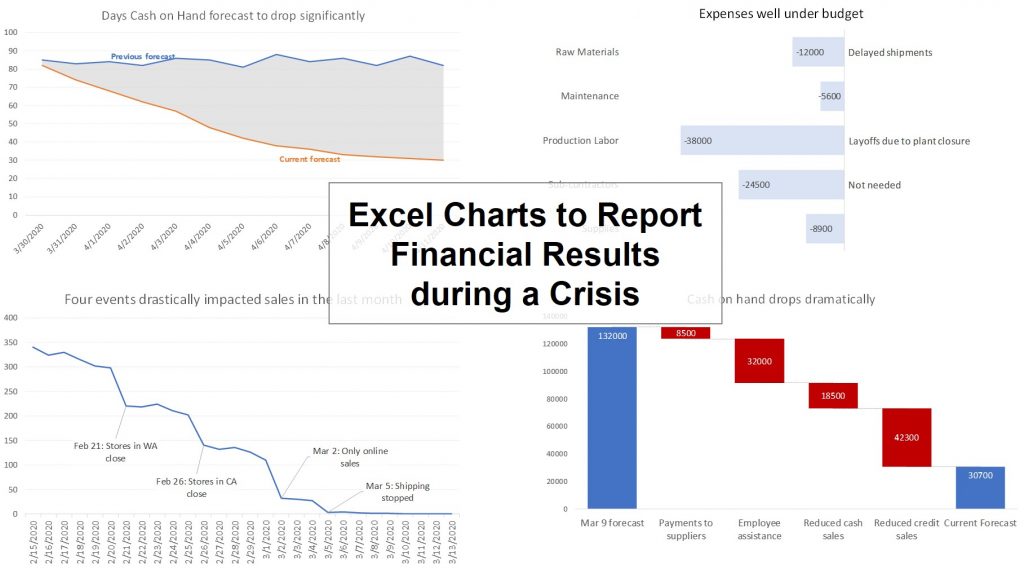
Techniques for Using Financial Data in PowerPoint TBA Yes


Video is the hottest trend in presentations.  Now you can learn how to add video to your PowerPoint presentation without spending thousands of dollars or taking days of extra effort.

Video is the hottest trend in communicating.  We are watching more video than ever before on the Internet and we have seen presenters use video clips in their presentations.  It looks like it is difficult and expensive to add video to your presentations, but it really isn’t.  You can add video to your presentations yourself without any fancy equipment, software or specialized knowledge.  When you add video, you take your presentation to the next level.  I want to blow open the myth that video is too difficult for most presenters to use.  So I’m doing a one hour webinar where I’ll show you:

  • How to create an effective video clip
  • How to make sure you don’t get into legal trouble when using video clips
  • The three key sources for video, including the most powerful one which is probably in your pocket right now
  • How to make sense of the alphabet soup of video file formats, and which one is the preferred format for PowerPoint
  • Two free utilities (one online and one program) that you can use to convert almost any video file to the preferred format
  • The two key parameters of any video clip that will determine how well it looks in your presentation
  • Step-by-step instructions for the two methods of inserting video clips into your presentation
  • Exactly what you should say and do during the presentation so that the audience pays attention to the video and immediately understands the point of the video

I’ve been using video for years in my workshop presentations and I’ve helped many presenters start using video clips in their presentations.  You can join the group of top presenters who use video clips in their PowerPoint presentations.

It doesn’t matter which version of PowerPoint you use.  I’ll be showing instructions primarily in PowerPoint 2007, but I’ll cover PowerPoint 2003 and 2010 if there are any differences (usually they are almost identical).  I’ll focus on the Windows versions of PowerPoint, but almost everything is very similar in the Mac versions of PowerPoint.

Some of you will want to re-watch the webinar to review the points and use it when you are ready to put your first video in a presentation.  For those of you who learn best this way, you can get a recording of the entire webinar at a very reasonable additional cost.  It will be available as a downloaded WMV video file that will play on your computer.  You can pause it at any time to switch over to PowerPoint or the other tools I’ll be showing so you can try out the techniques you just saw me cover on the video.

The media have told us that the recession is over and good times are here again.  Well I know lots of people who haven’t seen that yet.  Training budgets are still cut, and people are still fearful of their jobs.  In fact, one of our friends, who was a bridesmaid in our wedding, got laid off after 14 years with the organization and another friend has been out of work for 15 months.  So I’m going to make this outrageously affordable for you to attend.  I’m only asking you to pay $49!  That’s right, for less than fifty bucks, you get 60 minutes of rock solid useful training on the hottest trend in presentations today.  And if you want the recording, it is only $20 extra.

What about my colleagues, you ask.  I’d like them to be able to attend too, but our training budget is pretty tight.  Is there a discount if we have five or more people coming?  You’ve seen other training programs offer a little price break if a whole bunch attend.  I’m doing it differently.  If you want a group to be on the call, just register for the group connection.  It will allow you to put the connection into a meeting room and you can stuff as many people in the room as the fire code will allow.  And at $99 for the group connection, you can make this an easily affordable training event.  Just book a meeting room in your office that has a projector, a computer with a wired Internet connection, and a speakerphone (which most meeting rooms already have these days) and you are set to go.  And you can get the recording for $20 extra if you’d like.

I will make the recording available for sale once it is ready, and if you can’t attend, you can use the link below to order the recording only.  It will be sent to you as soon as it is ready.  Watch it when you have the time and learn the techniques and ideas that will have you incorporating video into your PowerPoint presentations.

Here are some comments from those who attended the live webinar in the past:

"It was a terrific and specific course that gives our team the competitive edge of video in our presentations because Dave has answered and stepped me through a lot of the typical hurdles, questions, concerns, and fears we have had about using video in PPT in the past!  Thanks Dave!"

"Love the quick, applicable ideas and the tools that make it all work!"

"This session was loaded with great information!  It takes you from novice to pro in one easy lesson."

Are you ready to add video to your PowerPoint presentations?  Sign up below for the option that best suits your situation.

Registration for the live session is now closed.
Missed the live session? Order the recording and see everything that was presented.

Recording of the November 8, 2011 live webinar


Photographs are an essential part of PowerPoint presentations today.  Now you can learn how to find and use photos that have impact, without needing to be a photography expert.

The era of ClipArt is over.  Audiences see it and they immediately devalue your message.  Photos have taken over and they are required in today’s presentations.  To take advantage of photos, you need to find the right ones, add them correctly on your slides, and use them properly during the presentation.  In this one hour webinar, I’ll show you:

  • How to access over 150,000 photos that Microsoft offers you for free, including how to quickly find the photo you want and save it locally so you can re-use it
  • Where you can find millions of professionally taken photos that you can use for about $8 a photo (instead of paying the hundreds of dollars for a single use that many big stock photography web sites charge)
  • How to tap in to the exploding photo sharing world, including how to find these photos, how to determine whether you can use it, and how to properly attribute the photo
  • How to use the unique photos you take without making a high-res photo explode the size of your PowerPoint file
  • The basics of copyright protection for photos and why I suggest you not use Google Image search as a source for photos
  • The correct way to insert photos on a slide and how to crop, rotate, apply effects and even remove the background if you need to
  • How to fill a shape or pie chart wedge with a photo to give even more impact to certain slides
  • Why your file size can grow dramatically when using photos and the feature in PowerPoint that can usually cut your file size in half or more
  • How to properly use the photo during the presentation, including the introduction, where you should look, and how to make sure everyone understands the same point from the photo

If you are ready to put the power of photos to work for you in your presentations, this webinar will give you the information you need to start right away.

It doesn’t matter which version of PowerPoint you use.  I’ll be showing instructions primarily in PowerPoint 2007, but I’ll cover PowerPoint 2003 and 2010 if there are any differences (usually they are almost identical).  I’ll focus on the Windows versions of PowerPoint, but almost everything is very similar in the Mac versions of PowerPoint.

Some of you will want to re-watch the webinar to review the points and use it when you are ready to put great photos in a presentation.  For those of you who learn best this way, you can get a recording of the entire webinar at a very reasonable additional cost.  It will be available as a downloaded WMV video file that will play on your computer.  You can pause it at any time to switch over to PowerPoint or the other tools I’ll be showing so you can try out the techniques you just saw me cover on the video.

The media have told us that the recession is over and good times are here again.  Well I know lots of people who haven’t seen that yet.  Training budgets are still cut, and people are still fearful of their jobs.  In fact, one of our friends, who was a bridesmaid in our wedding, got laid off after 14 years with the organization and another friend has been out of work for 15 months.  So I’m going to make this outrageously affordable for you to attend.  I’m only asking you to pay $49!  That’s right, for less than fifty bucks, you get 60 minutes of rock solid useful training on an essential part of presentations today.  And if you want the recording, it is only $20 extra.

What about my colleagues, you ask.  I’d like them to be able to attend too, but our training budget is pretty tight.  Is there a discount if we have five or more people coming?  You’ve seen other training programs offer a little price break if a whole bunch attend.  I’m doing it differently.  If you want a group to be on the call, just register for the group connection.  It will allow you to put the connection into a meeting room and you can stuff as many people in the room as the fire code will allow.  And at $99 for the group connection, you can make this an easily affordable training event.  Just book a meeting room in your office that has a projector, a computer with a wired Internet connection, and a speakerphone (which most meeting rooms already have these days) and you are set to go.  And you can get the recording for $20 extra if you’d like.

I will make the recording available for sale once it is ready, and if you can’t attend, you can use the link below to order the recording only.  It will be sent to you as soon as it is ready.  Watch it when you have the time and learn the techniques and ideas that will have you adding great photos into your PowerPoint presentations.

Here are some comments from those who attended the live webinar in the past:

"Well presented information, concise & clear presentation with ample examples."

"This was a session packed full of helpful hints that I can start implementing today. Well worth the price of admission."

"Even though I consider myself pretty web savvy and understand a lot about PowerPoint, Dave offered me some very useful tips and tricks to make my slides more impactful. I will be able to take these tools of working with photos in PowerPoint and translate them into several areas of my job."

Are you ready to add impact to your PowerPoint presentations with great photos?  Sign up below for the option that best suits your situation.

Registration for the live session is now closed.
Missed the live session? Order the recording and see everything that was presented.

Recording of the Dec 6 live webinar


The default graphs in PowerPoint are cluttered and hard to understand. Learn how to create graphs that are clean, clear, and instantly understood by your audience.

If you present numerical information or financial information, graphs are likely a better way to show your message than a slide full of numbers.  Unfortunately the default graph settings that PowerPoint provides won’t make your presentation as effective as it could be.  To create clean, effective graphs, you need to know how to create the graph quickly, the best practices for each type of graph, and the particular challenges you face when working with graphs when you switch between versions of PowerPoint.  In this one hour webinar, I’ll show you:

  • How to set up an Excel spreadsheet so that when you copy the cells into the PowerPoint graph it works properly the first time
  • How to create the graph in PowerPoint and how to avoid some pitfalls related to copying and pasting data
  • How to get rid of three specific default graph elements that diminish the effectiveness of any graph
  • The specific best practices that apply to the most common types of graphs, including column or bar graphs, line graphs, and pie graphs so your graph will be clean and easy to understand
  • How to avoid the problems that come when creating a graph in one version of PowerPoint and editing it in another to save you hours of frustration
  • When you might want to use some of the less common graph types so you know when they might be appropriate

If you are ready to start creating and using clear, effective graphs in your PowerPoint presentations, this webinar will give you the information you need to know.

It doesn’t matter which version of PowerPoint you use.  I’ll be showing instructions primarily in PowerPoint 2007, but I’ll cover PowerPoint 2003 and 2010 if there are any differences (usually they are almost identical).  I’ll focus on the Windows versions of PowerPoint, but almost everything is very similar in the Mac versions of PowerPoint.

Some of you will want to re-watch the webinar to review the points and use it when you are ready to put great photos in a presentation.  For those of you who learn best this way, you can get a recording of the entire webinar at a very reasonable additional cost.  It will be available as a downloaded WMV video file that will play on your computer.  You can pause it at any time to switch over to PowerPoint or the other tools I’ll be showing so you can try out the techniques you just saw me cover on the video.

The media have told us that the recession is over and good times are here again.  Well I know lots of people who haven’t seen that yet.  Training budgets are still cut, and people are still fearful of their jobs.  In fact, one of our friends, who was a bridesmaid in our wedding, got laid off after 14 years with the organization and another friend has been out of work for 15 months.  So I’m going to make this outrageously affordable for you to attend.  I’m only asking you to pay $49!  That’s right, for less than fifty bucks, you get 60 minutes of rock solid useful training on an essential part of presentations today.  And if you want the recording, it is only $20 extra.

What about my colleagues, you ask.  I’d like them to be able to attend too, but our training budget is pretty tight.  Is there a discount if we have five or more people coming?  You’ve seen other training programs offer a little price break if a whole bunch attend.  I’m doing it differently.  If you want a group to be on the call, just register for the group connection.  It will allow you to put the connection into a meeting room and you can stuff as many people in the room as the fire code will allow.  And at $99 for the group connection, you can make this an easily affordable training event.  Just book a meeting room in your office that has a projector, a computer with a wired Internet connection, and a speakerphone (which most meeting rooms already have these days) and you are set to go.  And you can get the recording for $20 extra if you’d like.

I will make the recording available for sale once it is ready, and if you can’t attend, you can use the link below to order the recording only.  It will be sent to you as soon as it is ready.  Watch it when you have the time and learn the techniques and ideas that will have you creating effective graphs in your PowerPoint presentations.

Are you ready to increase the impact of graphs in your PowerPoint presentations?  Sign up below for the option that best suits your situation.

Registration for the live session is now closed.
Missed the live session? Order the recording and see everything that was presented.

Recording of the April 19, 2011 live webinar


Audiences are annoyed by the swirling, twirling and flying effects that make them dizzy.  Learn how to use animation effects to focus your audience on your message and keep them glued to your presentation.

You’ve seen the annoying flying text, bouncing photos and swirling shapes.  These uses of animation effects lead some to suggest you avoid using animation altogether.  But don’t rush to blame the feature in PowerPoint when animation can be used prudently to help focus your audience and make your message have more impact.  If you’d like to become one of the savvy users of animation effects that add to the effectiveness of your presentations, join me on the one hour webinar where I’ll show you:

  • Why certain effects are annoying and which ones you should be using that enhance your presentation
  • The keys steps in building a slide one element at a time so that the audience can focus on each point you are making
  • How to animate graphs so that each set of data can be explained individually and understood easily
  • The magic of exit animation and object movement that produce effects that your audience will think came from sophisticated movie software because they are so powerful
  • How to zoom in on diagrams, photos, or other graphics so that the audience can get a macro and micro view when explaining complex topics
  • How to test the animation effects and sequence quickly and easily to speed up slide creation
  • How to print animated slides so what the audience sees in their handout is clear and easy to use no matter how many effects you have used on the slide they see

If you have been avoiding animation because you have seen it used poorly, or you have been guilty of using effects just because they are “cool”, join me on this webinar so that you can discover how appropriate use of animation can increase the effectiveness of your PowerPoint presentation.

It doesn’t matter which version of PowerPoint you use.  I’ll be showing instructions primarily in PowerPoint 2007, but I’ll cover PowerPoint 2003 and 2010 if there are any differences (usually they are almost identical).  I’ll focus on the Windows versions of PowerPoint, but almost everything is very similar in the Mac versions of PowerPoint.

Some of you will want to re-watch the webinar to review the points and use it when you are ready to add animation effects to a presentation.  For those of you who learn best this way, you can get a recording of the entire webinar at a very reasonable additional cost.  It will be available as a downloaded WMV video file that will play on your computer.  You can pause it at any time to switch over to PowerPoint or the other tools I’ll be showing so you can try out the techniques you just saw me cover on the video.

The media have told us that the recession is over and good times are here again.  Well I know lots of people who haven’t seen that yet.  Training budgets are still cut, and people are still fearful of their jobs.  In fact, one of our friends, who was a bridesmaid in our wedding, got laid off after 14 years with the organization and another friend has been out of work for 15 months.  So I’m going to make this outrageously affordable for you to attend.  I’m only asking you to pay $49!  That’s right, for less than fifty bucks, you get 60 minutes of rock solid useful training on an essential part of presentations today.  And if you want the recording, it is only $20 extra.

What about my colleagues, you ask.  I’d like them to be able to attend too, but our training budget is pretty tight.  Is there a discount if we have five or more people coming?  You’ve seen other training programs offer a little price break if a whole bunch attend.  I’m doing it differently.  If you want a group to be on the call, just register for the group connection.  It will allow you to put the connection into a meeting room and you can stuff as many people in the room as the fire code will allow.  And at $99 for the group connection, you can make this an easily affordable training event.  Just book a meeting room in your office that has a projector, a computer with a wired Internet connection, and a speakerphone (which most meeting rooms already have these days) and you are set to go.  And you can get the recording for $20 extra if you’d like.

I will make the recording available for sale once it is ready, and if you can’t attend, you can use the link below to order the recording only.  It will be sent to you as soon as it is ready.  The recording has all the video and audio that the live attendees will see and hear, so you won't miss a thing.  Watch it when you have the time and learn the techniques and ideas that will have you using animation to focus the audience in your PowerPoint presentations.

Are you ready to use animation effects appropriately to increase the impact of your PowerPoint presentations?  Sign up below for the option that best suits your situation.

Registration for the live session is now closed.
Missed the live session? Order the recording and see everything that was presented.
Recording of the May 12, 2011 live webinar


Once you are comfortable creating basic graphs in PowerPoint, it is time to take your skills to the next level. By using advanced techniques, your graphs can communicate your message even more effectively.

You are now comfortable creating graphs in PowerPoint and you agree that they show data better than a spreadsheet pasted on the slide.  You’ve seen some professionals use graphs that are obviously customized from the default graphs that PowerPoint creates.  How did they create those graphs?  If you want to learn the advanced techniques that will make your graphs speak more clearly and powerfully to your audience, you will want to attend this webinar.  I’ll cover topics in four areas:

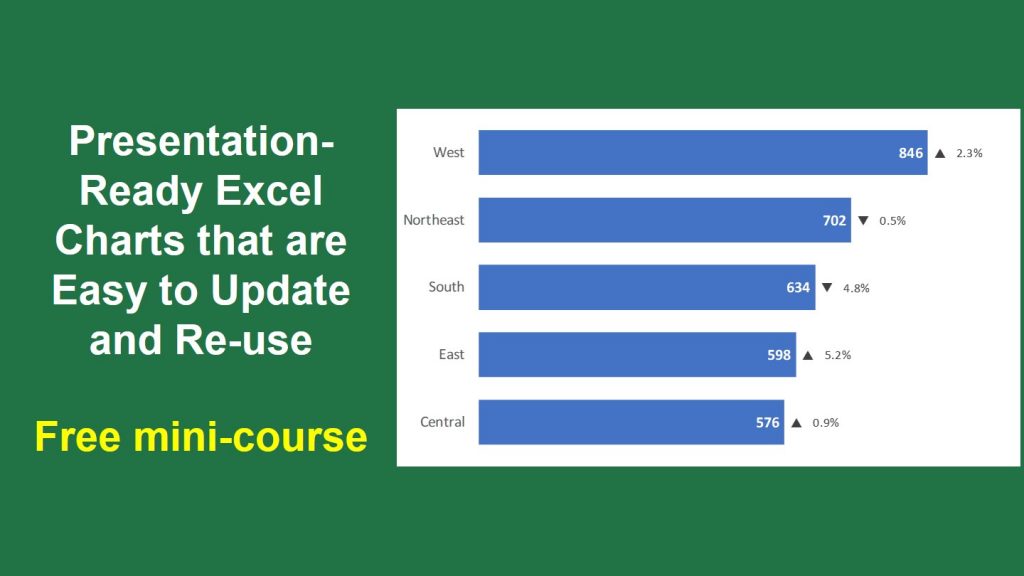
  • Labelling the graph to increase clarity: how to customize the built-in labels; how to add your own labels, even within the graph; adding reference values so comparisons are easy for the audience; and how to use callouts to direct attention to the most important spot on the graph
  • Advanced graph types: Bubble graphs to compare scale; Radar graphs to compare scores on multiple dimensions at once; Dual axis graphs to allow two measurements to be shown on one graph; and Waterfall graphs to show the components of difference between a starting and ending value (often used in budgeting discussions)
  • Building a graph with animation: Deciding what order to build items; when to build more than one piece at time; understanding the options PowerPoint gives you; and how to have your own text labels animate with each piece of the graph
  • Linking from a graph to detailed data: how to link the data that creates the graph to the source data in Excel so the graph can be updated when the Excel data changes; and how to link from the graph slide to the Excel spreadsheet if the audience wants to dive into the details

As you can see from what I’ll be covering, this webinar is not for beginners or those just starting to use graphs (if you are just starting to use graphs in PowerPoint, click here to check out my webinar that is more suited to your needs).  If you are an experienced PowerPoint user and need to use graphs regularly in your presentations, this webinar will give you the advanced techniques you can use immediately.

It doesn’t matter which version of PowerPoint you use.  I’ll be showing instructions primarily in PowerPoint 2007, but I’ll cover PowerPoint 2003 and 2010 if there are any differences (usually they are almost identical).  I’ll focus on the Windows versions of PowerPoint, but almost everything is very similar in the Mac versions of PowerPoint.

Some of you will want to re-watch the webinar to review the points and use it when you are ready to add animation effects to a presentation.  For those of you who learn best this way, you can get a recording of the entire webinar at a very reasonable additional cost.  It will be available as a downloaded WMV video file that will play on your computer.  You can pause it at any time to switch over to PowerPoint or the other tools I’ll be showing so you can try out the techniques you just saw me cover on the video.

The media have told us that the recession is over and good times are here again.  Well I know lots of people who haven’t seen that yet.  Training budgets are still cut, and people are still fearful of their jobs.  In fact, one of our friends, who was a bridesmaid in our wedding, got laid off after 14 years with the organization and another friend has been out of work for 15 months.  So I’m going to make this outrageously affordable for you to attend.  I’m only asking you to pay $49!  That’s right, for less than fifty bucks, you get 60 minutes of rock solid useful training on an essential part of presentations today.  And if you want the recording, it is only $20 extra.

What about my colleagues, you ask.  I’d like them to be able to attend too, but our training budget is pretty tight.  Is there a discount if we have five or more people coming?  You’ve seen other training programs offer a little price break if a whole bunch attend.  I’m doing it differently.  If you want a group to be on the call, just register for the group connection.  It will allow you to put the connection into a meeting room and you can stuff as many people in the room as the fire code will allow.  And at $99 for the group connection, you can make this an easily affordable training event.  Just book a meeting room in your office that has a projector, a computer with a wired Internet connection, and a speakerphone (which most meeting rooms already have these days) and you are set to go.  And you can get the recording for $20 extra if you’d like.

I will make the recording available for sale once it is ready, and if you can’t attend, you can use the link below to order the recording only.  It will be sent to you as soon as it is ready.  The recording has all the video and audio that the live attendees will see and hear, so you won't miss a thing.  Watch it when you have the time and learn the techniques and ideas that will have you using advanced graph techniques in your PowerPoint presentations.

Are you ready to use advanced graphing techniques in your PowerPoint presentations?  Sign up below for the option that best suits your situation.

Registration for the live session is now closed.
Missed the live session? Order the recording and see everything that was presented.
Recording of the June 9, 2011 live webinar


Planning your presentation is a critical step you should always take before ever touching PowerPoint. Here's a simple way to plan every presentation so it is successful.

Why should you spend time planning your presentation? Why not just start creating slides? If you don’t plan your message first, you will end up with an overload of information that confuses the audience. Presenters who invest time planning their message deliver more focused presentations that audiences understand and act upon. If you want to deliver an effective presentation, you need to start by planning your message and then planning each slide to support your message. Planning doesn’t take a lot of time once you learn a simple process to follow. In this one hour webinar, I’ll show you:

  • What annoys audiences and why this knowledge should influence the way you prepare your presentation
  • A seven step process that you can follow every time to create presentations that have focus and move an audience to action
  • What research tells us about sequencing the information in our presentation and the one simple switch you can make that will increase the effectiveness of your presentation
  • Why information overload is the biggest problem in many presentations and six questions you can use to make your content laser focused
  • A form you can use to successfully plan your presentation every time
  • The two reasons you should use a slide, the one type of slide you should never use, and the one thing that presenters must give themselves permission to do when using slides
  • A form you can use to plan each slide so it is quicker to create and easier to hand off to someone else to create
  • How to start using these ideas even if you can only squeeze 15 minutes out of your busy day

My recent survey showed a significant increase in the number of presentations being done, and the skill of creating and delivering an effective presentation will set you apart from others in your organization. Register now so you can learn the process for planning an effective presentation.

It doesn’t matter which version of PowerPoint you use because this webinar is not about the software. It is about what you need to do before you start using PowerPoint.

Some of you will want to re-watch the webinar to review the points and use it when you are ready to add animation effects to a presentation.  For those of you who learn best this way, you can get a recording of the entire webinar at a very reasonable additional cost.  It will be available as a downloaded WMV video file that will play on your computer.  You can pause it at any time to switch over to PowerPoint or the other tools I’ll be showing so you can try out the techniques you just saw me cover on the video.

The media have told us that the recession is over and good times are here again.  Well I know lots of people who haven’t seen that yet.  Training budgets are still cut, and people are still fearful of their jobs.  In fact, one of our friends, who was a bridesmaid in our wedding, got laid off after 14 years with the organization and another friend has been out of work for two years.  So I’m going to make this outrageously affordable for you to attend.  I’m only asking you to pay $49!  That’s right, for less than fifty bucks, you get 60 minutes of rock solid useful training on an essential part of presentations today.  And if you want the recording, it is only $20 extra.

What about my colleagues, you ask.  I’d like them to be able to attend too, but our training budget is pretty tight.  Is there a discount if we have five or more people coming?  You’ve seen other training programs offer a little price break if a whole bunch attend.  I’m doing it differently.  If you want a group to be on the call, just register for the group connection.  It will allow you to put the connection into a meeting room and you can stuff as many people in the room as the fire code will allow.  And at $99 for the group connection, you can make this an easily affordable training event.  Just book a meeting room in your office that has a projector, a computer with a wired Internet connection, and a speakerphone (which most meeting rooms already have these days) and you are set to go.  And you can get the recording for $20 extra if you’d like.

I will make the recording available for sale once it is ready, and if you can’t attend, you can use the link below to order the recording only.  It will be sent to you as soon as it is ready.  The recording has all the video and audio that the live attendees will see and hear, so you won't miss a thing.  Watch it when you have the time and learn the techniques and ideas that will have you planning successful presentations.

Are you ready to plan a successful presentation every time?  Sign up below for the option that best suits your situation.

Registration for the live session is now closed.
Missed the live session? Order the recording and see everything that was presented.

Recording of the Oct 25, 2011 live webinar


Diagrams allow you to illustrate concepts or ideas in a way that bullet points just  can't match. You don't need specialized graphics training to create effective diagrams. This webinar will show you examples, best practices, and the insider techniques to quickly create diagrams in PowerPoint.

Graphs are a good way to make numeric information visual. But what do you do with the rest of the bullet point slides that are not numeric information? You can create diagrams. Diagrams are the best way to illustrate your point in a variety of situations. You’ve seen diagrams that make the information easy to understand, but you may be thinking that it takes a graphics background or design smarts to create those diagrams. Not at all. Once you have seen examples of diagrams that illustrate different concepts, you can adapt the ideas in your own presentations. In this one hour webinar, I’ll show you:

  • Three ways to show a process, flow or series of steps as a diagram instead of a list of numbered bullet points
  • Five diagrams that illustrate relationships so that people instantly understand your point and aren’t trying to figure out levels of sub-bullets
  • Ways of comparing options or a measured value at points in time that make it easy for you to present the information
  • Two diagrams that will show time-based information visually instead of a list of dates
  • The best practices for each type of diagram so you know how to design an effective visual for your own situation
  • Websites that you can use to find ideas for diagrams or buy pre-made diagrams
  • The key techniques in PowerPoint that will save you hours of time when creating diagrams. These tips are always the highlight of the session as you discover features of the software that no one has shown you before that make creating diagrams so much easier.

Every diagram I will show you is created in plain vanilla PowerPoint. I don’t use any graphics software, plug-ins, add-ins, or programming to create these visuals. Once you see the examples and see me demonstrate the techniques, you will be eager to get started creating your own diagrams. Register right now to learn how to convert those bullet points into meaningful diagrams.

It doesn’t matter which version of PowerPoint you use.  I’ll be showing instructions primarily in PowerPoint 2007, but I’ll cover PowerPoint 2003 and 2010 if there are any differences (usually they are almost identical).  I’ll focus on the Windows versions of PowerPoint, but almost everything is very similar in the Mac versions of PowerPoint.

Some of you will want to re-watch the webinar to review the points and use it when you are ready to add animation effects to a presentation.  For those of you who learn best this way, you can get a recording of the entire webinar at a very reasonable additional cost.  It will be available as a downloaded WMV video file that will play on your computer.  You can pause it at any time to switch over to PowerPoint or the other tools I’ll be showing so you can try out the techniques you just saw me cover on the video.

The media have told us that the recession is over and good times are here again.  Well I know lots of people who haven’t seen that yet.  Training budgets are still cut, and people are still fearful of their jobs.  In fact, one of our friends, who was a bridesmaid in our wedding, got laid off after 14 years with the organization and another friend has been out of work for two years.  So I’m going to make this outrageously affordable for you to attend.  I’m only asking you to pay $49!  That’s right, for less than fifty bucks, you get 60 minutes of rock solid useful training on an essential part of presentations today.  And if you want the recording, it is only $20 extra.

What about my colleagues, you ask.  I’d like them to be able to attend too, but our training budget is pretty tight.  Is there a discount if we have five or more people coming?  You’ve seen other training programs offer a little price break if a whole bunch attend.  I’m doing it differently.  If you want a group to be on the call, just register for the group connection.  It will allow you to put the connection into a meeting room and you can stuff as many people in the room as the fire code will allow.  And at $99 for the group connection, you can make this an easily affordable training event.  Just book a meeting room in your office that has a projector, a computer with a wired Internet connection, and a speakerphone (which most meeting rooms already have these days) and you are set to go.  And you can get the recording for $20 extra if you’d like.

I will make the recording available for sale once it is ready, and if you can’t attend, you can use the link below to order the recording only.  It will be sent to you as soon as it is ready.  The recording has all the video and audio that the live attendees will see and hear, so you won't miss a thing.  Watch it when you have the time and learn the techniques and ideas that will have you using diagrams effectively in your PowerPoint presentations.

Are you ready to use diagrams to illustrate ideas in your PowerPoint presentations?  Sign up below for the option that best suits your situation.

Registration for the live session is now closed.
Missed the live session? Order the recording and see everything that was presented.

Recording of the November 22 live webinar


Financial data is confusing if all you do is paste a huge spreadsheet on a slide. This webinar will show you the techniques in PowerPoint to create financial slides that are easier for the audience to understand.

Accountants and financial professionals have always needed to put financial data into their presentations. With an increased focus on financial information in every organization, many other professionals also need to include financial data in their presentation. It is not as simple as just copy and paste from Excel. If you’ve done that, you know it doesn’t work out the way you planned. So what techniques do you need to know in PowerPoint to make your financial data look good on slides and be easy to present? That’s what I’ll be showing you in this one hour webinar. You will learn the functions and features that will make working with financial data much easier. Here’s what I’ll cover:

  • Five ways to copy Excel cells into PowerPoint. There is no one preferred method, but after you see these demonstrations, you’ll be able to select the best option each time.
  • Creating a table of figures in PowerPoint. I’ll show you two methods, and explain how knowing each one can help you create a table that looks and works exactly the way you want.
  • How to add callouts and universal indicators to a table so that the audience immediately understands what the numbers mean.
  • How to use financial data that comes in PDF format instead of Excel. How can you get it on a PowerPoint slide and show only what you need to show.
  • Two methods for drilling down in a complex financial statement. When you need to show the overall picture, and want to zoom in on a specific number, these methods will be exactly what you will need to use.
  • How to smoothly jump to more detailed information if someone asks for it, without fumbling around and breaking the flow of your presentation.

This webinar will be focused on how you accomplish these tasks in PowerPoint, so I’ll be using many screen shots and will likely drop into editing mode to demonstrate specific techniques. If you’ve seen some of my slide makeovers or been in one of my courses and wondered how I created the slides, this will be a perfect session for you. If you want to learn some of the techniques that will save you tons of time and make slide creation easier, sign up now.

It doesn’t matter which version of PowerPoint you use.  I’ll be showing instructions primarily in PowerPoint 2007, but I’ll cover PowerPoint 2003 and 2010 if there are any differences (usually they are almost identical).  I’ll focus on the Windows versions of PowerPoint, but almost everything is very similar in the Mac versions of PowerPoint.

Some of you will want to re-watch the webinar to review the points and use it when you are ready to add animation effects to a presentation.  For those of you who learn best this way, you can get a recording of the entire webinar at a very reasonable additional cost.  It will be available as a downloaded WMV video file that will play on your computer.  You can pause it at any time to switch over to PowerPoint or the other tools I’ll be showing so you can try out the techniques you just saw me cover on the video.

The approach to personal development has changed. It used to be that your organization would invest in training classes and workshops for you. That is no longer the case for many people. You have to pay for any training yourself and take your own time to attend. That’s why I make my focused sessions outrageously affordable for you. I’m only asking you to pay $49!  That’s right, for less than fifty bucks, you get 60 minutes of rock solid useful training on an essential part of presentations today.  And if you want the recording, it is only $20 extra.

What about my colleagues, you ask.  I’d like them to be able to attend too, but our training budget is pretty tight.  Is there a discount if we have five or more people coming?  You’ve seen other training programs offer a little price break if a whole bunch attend.  I’m doing it differently.  If you want a group to be on the call, just register for the group connection.  It will allow you to put the connection into a meeting room and you can stuff as many people in the room as the fire code will allow.  And at $99 for the group connection, you can make this an easily affordable training event.  Just book a meeting room in your office that has a projector, a computer with a wired Internet connection, and a speakerphone (which most meeting rooms already have these days) and you are set to go.  And you can get the recording for $20 extra if you’d like.

I will make the recording available for sale once it is ready, and if you can’t attend, you can use the link below to order the recording only.  It will be sent to you as soon as it is ready.  The recording has all the video and audio that the live attendees will see and hear, so you won't miss a thing.  Watch it when you have the time and learn the techniques and ideas that will have you using diagrams effectively in your PowerPoint presentations.

Are you ready to use diagrams to illustrate ideas in your PowerPoint presentations?  Sign up below for the option that best suits your situation.

Registration for the live session is now closed.
Missed the live session? Order the recording and see everything that was presented.

Recording of the January 17 live webinar